Macro Editor
Overview
The Macro editor is used to author and manage Macros: reusable expressions that can be referenced across your BimlFlex solution. Macros are organized in the Treeview and support both a list view for folders and a form view for individual Macros.
- Selecting a folder in the Treeview shows the Macro List (grid) with action buttons for managing multiple items.
- Selecting a Macro shows the Macro form with fields and action buttons specific to that Macro.
Macro Form
The Macro form is used to view and edit a single Macro.
Action Buttons
Action Buttons
| Icon | Action | Description |
|---|---|---|
 | Save | Persist changes to the selected Macro. Ctrl+S is also available. |
 | Discard | Revert any unsaved changes to the last saved values. |
 | Archive | Permanently remove the Macro from the active metadata repository and move it to the archive. |
 | Duplicate | Create a copy of the current Macro. |
 | Deleted | Soft delete the Macro so it is excluded from processing and validation. |
Fields
- Macro: The name of the Macro.
- Expression Language: Sets the language used for the Macro expression. This controls editor features such as syntax highlighting in the Expression editor.
- Display Folder: Optional grouping to organize Macros in the Treeview.
- Description: Long-text description of the Macro.
- Comments: Long-text comments for additional context.
- Expression: The Macro body. When the Expression Language is set to SQL, the editor uses SQL syntax highlighting.
General editor behavior such as sorting, filtering, and navigation applies here as described in the Editor Overview.
Macro List (Grid)
When a folder is selected, the Macro List is shown as a grid. The grid supports multiple column set views, including a default view with key fields and a description-focused view.
Action Buttons (Grid)
| Icon | Action | Description |
|---|---|---|
 | Add | Create a new Macro in the current folder. |
| Save | Save pending changes made directly in the grid. |
| Discard | Revert any unsaved changes in the grid. |
| Archive | Archive the selected Macro(s). |
 | Edit | Open the selected Macro in the form dialog for detailed editing. |
Columns
The default column view includes:
- Macro (Name)
- Language (Expression Language)
- Expression
The description view includes:
- Macro (Name)
- Description
- Comments
For general capabilities such as filtering, sorting, and multiple views, see the Editor Overview.
Additional Dialogs
Archive Macro Dialog
Confirmation box warning against the dangers of archiving. You are required to confirm by both the check box and the Ok button.
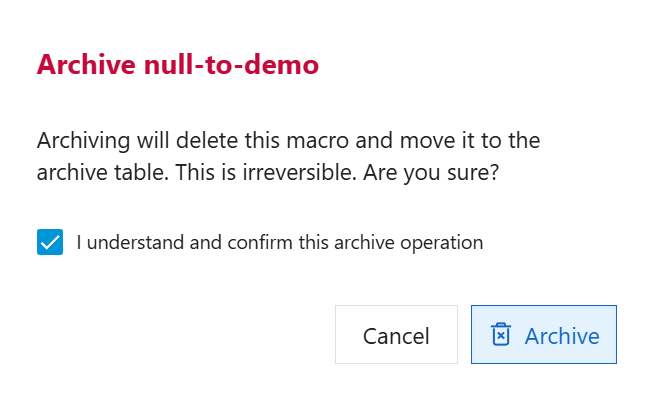
Archiving is a permanent removal of the selected entity from its associated table in the BimlFlex Database. The best practice is to first use the Deleted flag (soft delete) as an indication that the Macro may need to be removed.
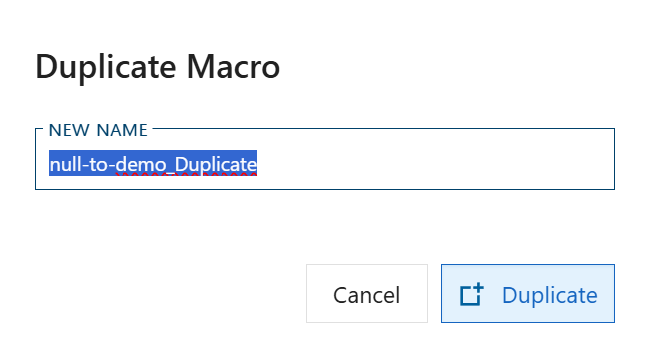
Duplicate Macro Dialog
This will create a copy of the selected Macro and properties.
Creating and Using Macros
For a guide on how to create and use macros, see Using Macros. This guide covers:
- Creating context-aware SQL expression macros with
@@thisplaceholders - Building reusable join statements and WHERE clause logic
- Applying macros to columns and SQL fields across your projects
- Verifying macro injection in generated stored procedures
- Best practices for reducing code duplication and improving efficiency