
Setting Editor
The Setting Editor is used to manage metadata and framework settings in the BimlFlex Application.
By changing settings, the produced artifacts can adapt to specific requirements for file locations, naming conventions, data conventions, etc.
Align these settings with the organizations best practices and environmental requirements.
Overview
 Solution Settings can be found under Standards in the application menu.
The Settings Reference Documentation has a page for most settings available in the BimlFlex App. The settings of the Data Factory Copy Source Members section of the Azure setting group have no page there. They are described below and on the pages of the Data Factory connectors that use them, such as MongoDB and SAP Table.
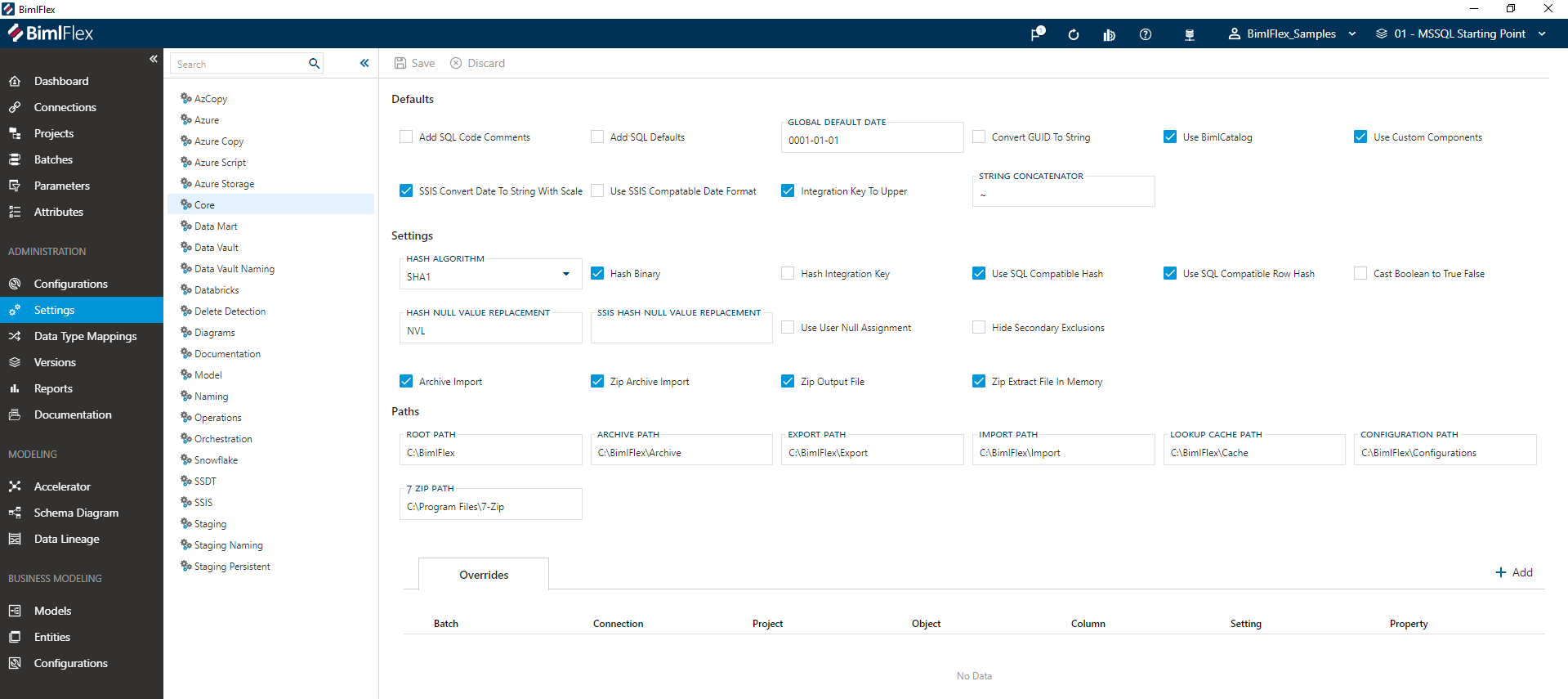
Setting Groups
Settings within the BimlFlex Application are organized into categories, Setting Groups, such as Azure, Core, Data Vault, Snowflake, etc. Each setting group contains settings that share a common purpose or area.
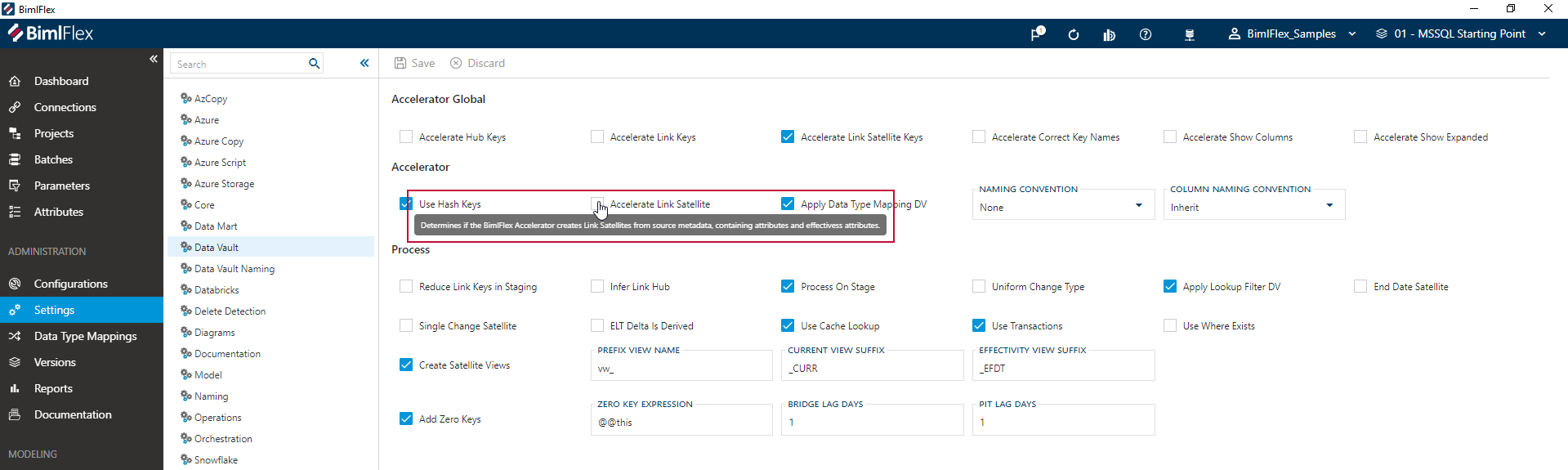
Hovering the mouse pointer over individual settings will display tooltips relating to some, along with brief explanation as to how settings will impact the solution.
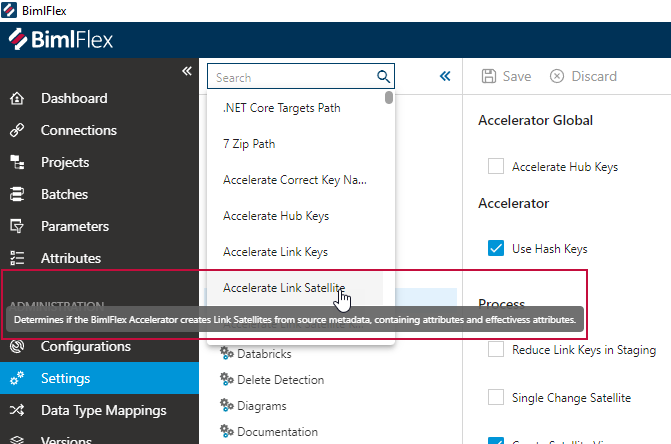
The Settings Group pane also contains a search field. The search field contains a drop down menu of all settings, organized alphabetically, and allows users to search directly for specific settings by name.
When using the search bar, if a user hovers over a specific search term the tooltip relating to that setting will also be displayed. The information displayed in the tooltip from the global search bar will the same as if the user hovered over the actual setting field, as referenced above.
Searching for a specific setting will automatically navigate the user to the respective Setting Group and highlight the specific setting within, guiding the user to the exact location needed.
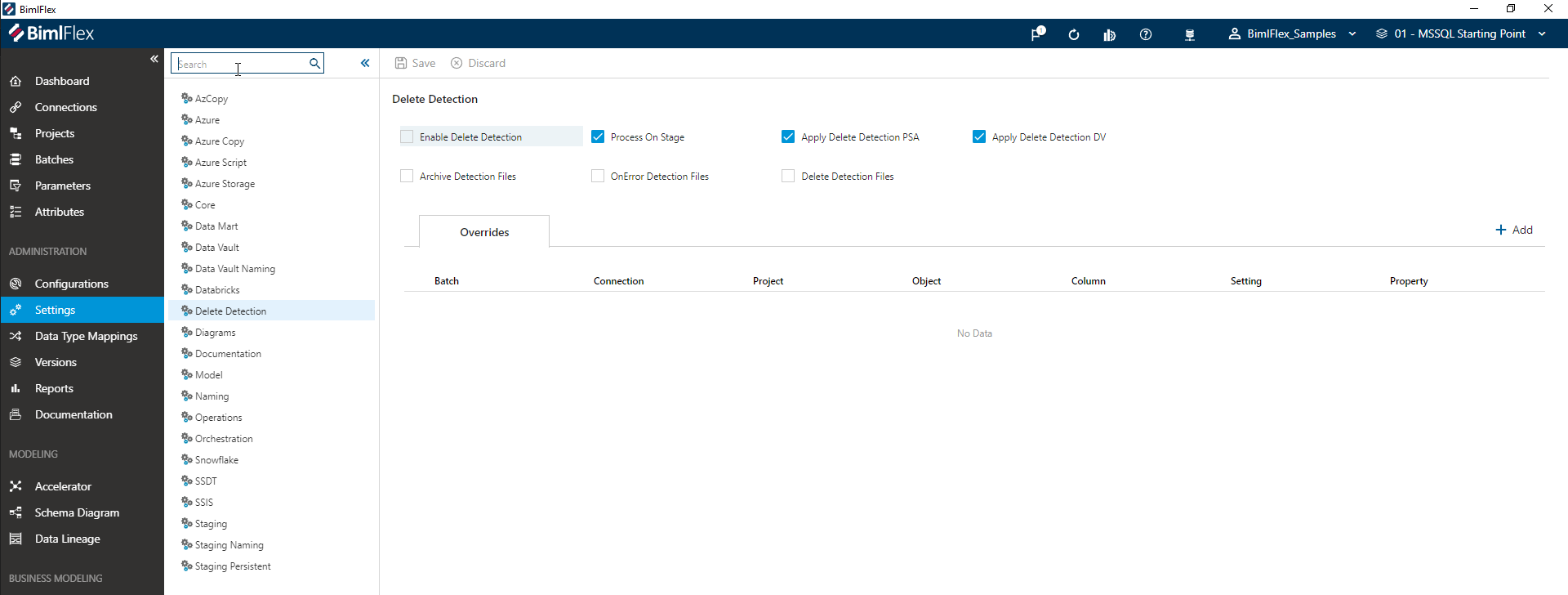 "Search Term Highlight")
For users who are unsure of the specific setting they need, beginning a search with "*" will allow users to search setting descriptions as well as setting titles. This may assist in guiding users to their desired setting based on associated terminology used in their search.
When applicable, settings that involve editing SQL code will appear in a window that mirrors standard SQL input styling and syntax.
Settings that are "Yes or No" selections will be presented with a checkbox to indicate their setting.
Settings that contain required values will be outlined in red.
Command Bar Buttons
The buttons in the command bar allow actions to be taken on the setting that is active in the editor.

| Icon | Action | Description |
|---|---|---|
 | Save | This will save any changes displayed in the Settings editor. The Save button is only enabled if there are changes in the form. |
 | Discard | This will Discard any unsaved changes and revert to last saved form. |
Setting Overrides
Setting Overrides ('overrides') are used for detailed configuration of how settings apply to specific areas of the solution. For example, to disable a setting globally but enable it for a specific Project or Object.
Setting overrides can be added and referenced in the setting editor. They will be listed in the Overrides Section of the editor for the selected setting group.
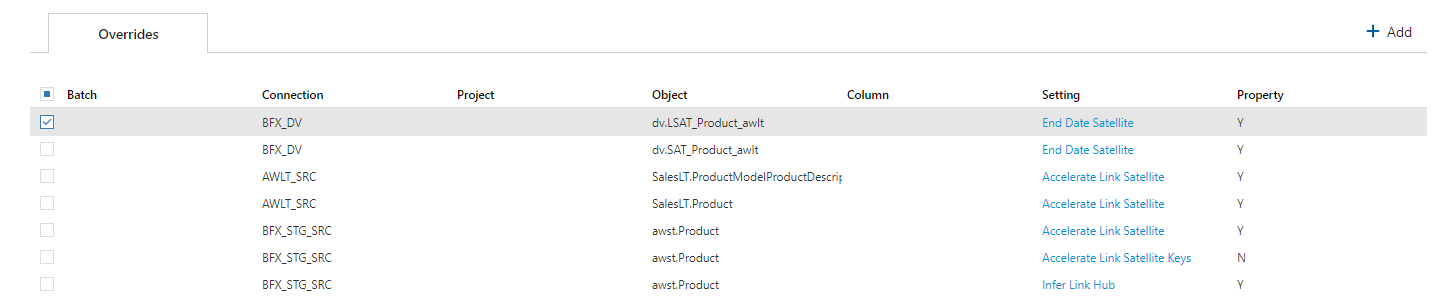
The setting overrides are presented in a grid view, and overrides can be selected here for editing or deletion. The override will show the scope for which the override will be applied, such as project and object, the involved setting and the setting value.
Setting Overrides are saved in BimlFlex as Attributes. The Attribute Editor documentation provides information on attributes and how to manage them.
The Azure setting group carries a section named Data Factory Copy Source Members. The settings in this section are blank by default. To set a member for one object, add a setting override with the Attribute Type Object, pick the Connection and the Object, and pick the setting by its label followed by the section in parentheses, for example Filter (Data Factory Copy Source Members). The Override Value holds the member's text. Where a member takes a list, such as Allowed Groups and Output Columns, the Override Value holds the items separated by commas.
A blank setting in this section writes nothing to the pipeline, and neither does a value equal to the member's default.
Adding a Setting Override
To add a setting override, click  Add in the top right of the overrides section, and fill out the Add Setting Override form.
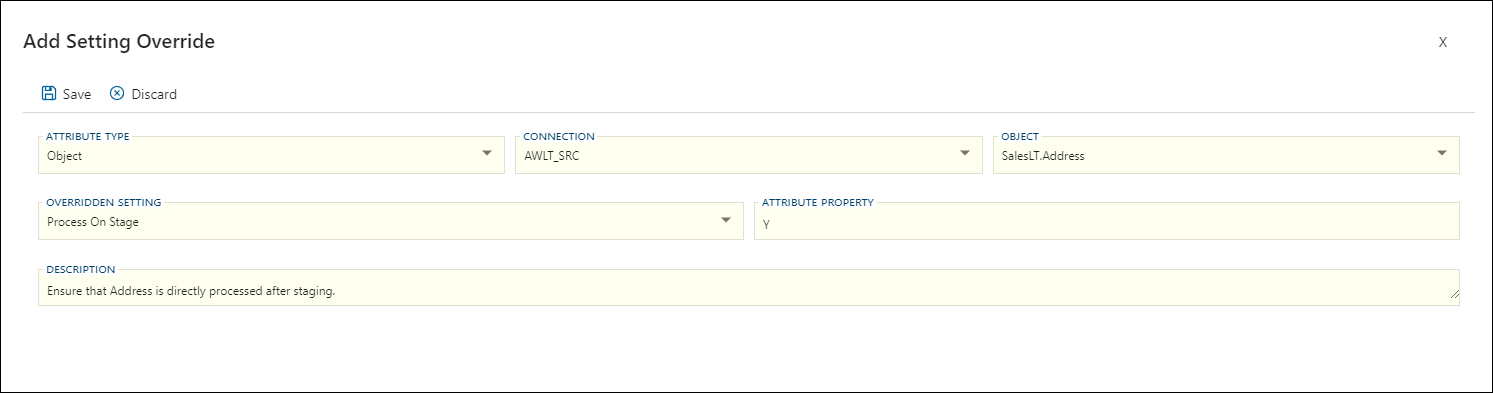
The fields that are used in the setting override form are defined in the table below.
| Setting Override Field Name | Description |
|---|---|
| Attribute Type | Defines the scope for when the override is applied. The form offers Object, Project, Connection, Customer and Batch. Object asks for the Connection and then the Object, Project asks for the Project, Connection asks for the Connection and Batch asks for the Batch. |
| Setting | Specifies the setting that will be overridden. Each setting is listed by its label followed by its section in parentheses. |
| Override Value | The setting value that applies to the override. For example 'Y' or 'N'. The exact possible values depend on the setting for which the override is created. |
| Description | Optional description of the setting override. |
When the build resolves a setting for an object, an override on the object comes first. Without one, the build uses an override on the object's connection, then one on the object's project, then one on the parent project, and otherwise the setting's own value.
The key of a setting override must match the setting key exactly, including letter case. The application reports an override whose key matches no setting as an error, and the build ignores that override.
Editing or Deleting a Setting Override
To manage a setting override, click the checkbox in the first column of the overrides grid. This will show the Edit option. This will only be visible if a single override has been selected.
Clicking the Edit button will open the Edit Setting Override form, which also allows the archiving / removal of the setting override.
Alternatively, as setting overrides are managed as Attributes in BimlFlex, it is possible to manage them from the Attribute Editor. Please refer to the Attribute Editor documentation for additional information.