Preparing BimlFlex for Databricks
Before working with Databricks metadata, you should ensure that your environment is configured to use Databricks appropriately. This section will walk you through the required software and system configurations you will need to connect BimlFlex to your Databricks environment.
Getting Started with Sample Metadata
BimlFlex includes Databricks starter metadata that creates sample connections and metadata to help you start experimenting right away. To load the sample metadata:
- Open BimlFlex
- From the Dashboard, select the Load Sample Metadata dropdown
- Choose the Databricks sample that matches your target architecture
The sample metadata creates connections for each layer of the lakehouse:
- Source Connection: Points to a sample source database (e.g., AdventureWorks)
- Landing Connection: Where raw data is stored when first extracted
- Staging Connection: Where data is processed before loading to integration layers
- Persistent Staging Connection: Optional historized bronze layer
- Data Vault Connection: Silver layer for historization and traceability
- Data Mart Connection: Gold layer for analytics and reporting
Installing and Configuring a Databricks ODBC DSN
The ODBC driver is required when using the Metadata Importer to bring Databricks metadata into the BimlFlex framework when Databricks data sources are part of the solution.
For additional details on installing and configuring and ODBC driver and DSN, refer to the below Databricks Docs guides:
Choosing the BimlCatalog Connectivity Driver
Separately from the local ODBC DSN used for metadata import, BimlFlex generates a small utility module (bfxutils.py) that is deployed alongside the notebooks. At runtime this module connects from the Databricks cluster back to the BimlCatalog database to record batch, execution, and row-audit events.
From BimlFlex 2026.1, this runtime connectivity can use either of two drivers, controlled by the DatabricksUtilsDriver setting in Settings → Databricks Options:

| Utils Driver | How it connects | Cluster support |
|---|---|---|
ODBC (default) | Uses pyodbc. Requires the Simba ODBC driver on the cluster. BimlFlex generates a bfx_init_odbc.sh init script for this. | Compute clusters, job clusters. |
JDBC | Uses the pure-Python pytds library. No cluster-side driver installation required. | Compute clusters, job clusters, and serverless compute. |
Selecting JDBC unlocks serverless Databricks job execution because serverless clusters cannot run init scripts. It also removes the need to maintain a custom init script in your cluster policy. See the JDBC Driver and Serverless Job Clusters guide for step-by-step migration, secrets configuration, and the artifact differences between the two modes.
This setting only affects the runtime driver used by the generated notebooks. The Metadata Importer in the BimlFlex App still requires the local Simba ODBC driver and a DSN when importing metadata directly from a Databricks catalog.
Configuring BimlFlex for Databricks
BimlFlex uses Settings to adapt to specific requirements for file locations, naming conventions, data conventions etc.
Align these settings with the organizations best practices and environmental requirements.
Databricks Settings
The following Databricks Databricks-specific settings are used to configure overall orchestration options for Databricks.
These settings define the connectivity configuration from BimlFlex to Databricks, and are used in the resulting data solution when deployed to the target environment. For example, these settings are used to define the Linked Service and file locations.
Please configure and review the above settings carefully, as they are essential for correct connectivity to Databricks in the compiled data solution.
Azure Storage Processing Settings
The following Azure Settings are used to configure the blob destinations. This is mandatory when using Databricks.
Settings
| Setting Key | Setting Description |
|---|---|
| Archive Container | The Container Name to use for the archive process |
| Archive Account Name | The Azure Blob Storage Account Name to use for archiving data as files in blob storage |
| Archive Account Key | A Storage access key to use when accessing the Blob storage |
| Archive SAS Token | A Storage access SAS Token to use when accessing the Blob storage |
| Error Container | The Container Name to use for the Error process |
| Error Account Name | The Azure Blob Storage Account Name to use for error files in blob storage |
| Error Account Key | A Storage access key to use when accessing the Blob storage |
| Error SAS Token | A Storage access SAS Token to use when accessing the Blob storage |
| Stage Container | The Container Name to use for the staging process |
| Stage Account Name | The Azure Blob Storage Account Name to use for staging data as files in blob storage |
| Stage Account Key | A Storage access key to use when accessing the Blob storage |
| Stage SAS Token | A Storage access SAS Token to use when accessing the Blob storage |
| Blob Storage Domain | The AzCopy domain to use |
Examples
| Setting Key | Setting Description |
|---|---|
| Archive Container | archive |
| Archive Account Name | bfxblobaccount |
| Archive Account Key | <StorageAccountKey>== |
| Archive SAS Token | ?<SasToken> |
| Error Container | error |
| Error Account Name | bfxblobaccount |
| Error Account Key | <StorageAccountKey>== |
| Error SAS Token | ?<SasToken> |
| Stage Container | stage |
| Stage Account Name | bfxblobaccount |
| Stage Account Key | <StorageAccountKey>== |
| Stage SAS Token | ?<SasToken> |
| Blob Storage Domain | blob.core.windows.net |
For additional details, please refer to the following Microsoft guide on creating an account SAS.
Object File Path Configuration
In addition to the global storage settings, BimlFlex allows granular file path configuration at the Object level. These settings are configured in the Object Editor and override the default paths for individual objects.
Settings
| Setting Key | Setting Description |
|---|---|
| Source File Path | The path where source files are located. Used when the Object represents a file-based source. |
| Source File Pattern | The naming pattern for source files. Supports expressions for dynamic file matching. |
| Source File Filter | The filter applied to the Filter Activity after the Metadata Activity to select specific files. |
| Landing File Path | The path where extracted data files should be placed during the landing process. |
| Landing File Pattern | The naming pattern for landing files. Supports expressions including @@this for object name and pipeline().parameters for dynamic values. |
| Persistent Landing File Path | The file path where raw landing files are stored persistently for historical tracking and reprocessing. |
| Persistent Landing File Pattern | The naming pattern for files stored in the Persistent Landing File Path. May include date, time, or other variable elements. |
Examples
| Setting Key | Example Value |
|---|---|
| Source File Path | @@rs\@@schema\@@object or \\myadls.file.core.windows.net\myshare\souce |
| Source File Pattern | sales_*.parquet or @string('Account*.csv') |
| Source File Filter | @greater(item().lastModified, pipeline().parameters.LastLoadDate) or @and(startswith(item().name, 'Account'), endswith(item().name, '.csv')) |
| Landing File Path | @@this/Landing/ |
| Landing File Pattern | @concat('@@this', '_', replace(replace(formatDateTime(pipeline().parameters.BatchStartTime, 'yyyy-MM-ddTHH:mm:ss'), ':', ''), '-', ''), '.parquet') |
| Persistent Landing File Path | @concat('@@this/Archive/', formatDateTime(pipeline().parameters.BatchStartTime, 'yyyy/MM/dd/')) |
| Persistent Landing File Pattern | @@this_@@timestamp.parquet |
The @@this placeholder is automatically replaced with the Object name at runtime. These settings apply per-object and take precedence over connection-level defaults.
Databricks Table Settings
BimlFlex provides Databricks-specific settings at the Object level for controlling how tables are created in Databricks. These settings map directly to Databricks CREATE TABLE statement clauses.
Settings
| Setting Key | Setting Description |
|---|---|
| Partitioned By Clause | An optional clause to partition the table by a subset of columns. Improves query performance for filtered queries. |
| Location Clause | An optional path to the directory where table data is stored, which could be a path on distributed storage (e.g., DBFS, ADLS, S3). |
| Cluster By Clause | Optionally cluster the table or each partition into a fixed number of hash buckets using a subset of columns. Improves join and aggregation performance. |
| Table Properties | Optionally sets one or more user-defined table properties using TBLPROPERTIES. |
| Option Clause | Sets or resets one or more user-defined table options using the OPTIONS clause. |
Examples
| Setting Key | Example Value |
|---|---|
| Partitioned By Clause | PARTITIONED BY (ModifiedDate) |
| Location Clause | LOCATION 'abfss://[email protected]/awlt/Address' |
| Cluster By Clause | CLUSTER BY (CustomerKey) |
| Table Properties | TBLPROPERTIES (delta.autoOptimize.autoCompact = true) |
| Option Clause | OPTIONS ('delta.logRetentionDuration' = '30 days') |
For Delta Lake tables, it is recommended to add TBLPROPERTIES (delta.autoOptimize.optimizeWrite = true, delta.autoOptimize.autoCompact = true) to enable automatic optimization.
Configuring a Databricks Connection
This section outlines any specific considerations needed when configuring BimlFlex to use Databricks across the various Integration Stages.
| Field | Supported Values | Guide |
|---|---|---|
| Integration Stage | Source System*, Staging Area, Persistent Staging Area, Data Vault, Data Mart | Details |
| Connection Type | ODBC*, ODBC SQL Based ELT* | Details |
| System Type | Databricks Data Warehouse | Details |
| Connection String | Dsn={DSN Name};Uid={User Name};Pwd={Password};Database={Database Name};* | Details |
| Linked Service Type | Databricks | Details |
Integration Stage
BimlFlex provides support for the use of Databricks as both a target warehouse platform and as a Source System. It is highly recommended to use a single database that when using Databricks as a target warehouse platform.
Naming patterns and schemas can be used for separation as needed.
The generated DDL does not currently support USE DATABASE or USE WAREHOUSE statements.
Deployment would require either 'Cherry Picking' the correct tables for each database or using Generate Script Options and scoping to a specific Integration Stage before each generation of the scripts.
Landing Area
Databricks is not currently supported as a Landing Area but a Landing Area is required when using ADF to orchestrate data movement.
The recommendation is for the Landing Area to be a Connection Type of Azure Blob Storage and System Type of Flat File Delimited.
In addition to the Landing Area it is also important that the Settings for an Azure Blob Stage Container, Azure Blob Archive Container, and Azure Blob Error Container are populated correctly.
Ensure that all Azure Blob Container Settings are configured properly:
Additional resources are available on the Microsoft Docs sections:
Connection Type
Currently BimlFlex only supports the Connection Type of ODBC for a Databricks Connection when being used as the target data warehouse platform. When configuring a Databricks Integration Stage of Source System, please set the Connection Type to ODBC.
System Type
The System Type should always be Databricks Data Warehouse for any Databricks Connection.
Connection String
For Databricks connections, the connection string is configured through the Linked Service. See the Linked Services Section for details on configuring connection string values and Azure Key Vault secrets.
For additional details on creating a Connection refer to the below guide:
Importing Source Metadata
Once your connections are configured, you can import metadata from your source systems. BimlFlex treats all sources the same way because everything is metadata-driven, whether you are importing 10 tables or hundreds.
To import source metadata:
- Navigate to the source Connection
- Use the Import Metadata action to bring in tables
- For file-based sources, you can import directly from flat files or Parquet files
- After import, review the schema diagram showing tables and relationships
- Apply any overrides or additional modeling as needed
For additional details on importing metadata, refer to the Metadata Importer documentation.
Deploying the target Warehouse Environment
When Databricks is used as the target warehouse platform, BimlFlex will generate the required SQL scripts for the deployment of all the tables, stored procedures, and the Data Vault default inserts (Ghost Keys).
Once generated the scripts can be manually deployed to the required database.
Generating Databricks SQL Scripts
Using Databricks as the target warehouse platform requires the generation of the Databricks Table Script and Databricks Procedure Script options when using Generate Scripts in BimlStudio. Additionally if Data Vault is being used the standard Data Vault Default Insert Script can be used to generate the required Ghost Keys.
For additional details on generating DDL refer to the BimlFlex DDL generation guide.
Deploying Databricks SQL Scripts
Once BimlFlex generates the scripts they can be executed against the target database. These can be deployed through copy/paste using a Databricks SQL Editor, Notebook, or via the Databricks CLI.
Ensure you are using the appropriate catalog and schema when executing the SQL scripts. The scripts may not contain explicit catalog/schema references and depend on the user executing the script to have selected the appropriate context.
For additional details on using Databricks SQL and notebooks, refer to the Databricks documentation:
Orchestration
BimlFlex automatically generates the orchestration artifacts as part of the standard build process. The actual artifacts generated depends on the Integration Stage that is configured for the Project.
Targeting Serverless Compute
When DatabricksUtilsDriver is set to JDBC, the DatabricksJobCluster setting can be set to the literal value Serverless to run Databricks workloads on serverless compute. The setting can be applied globally or pinned per project through the Overrides grid on the Databricks settings page.
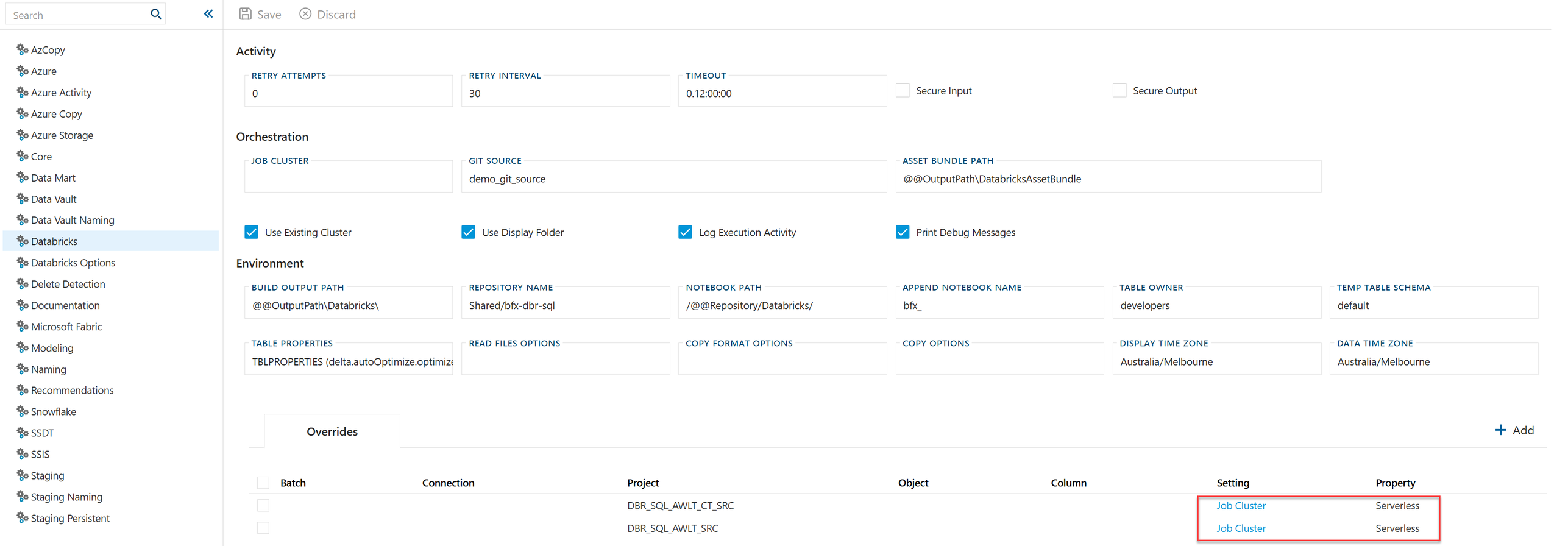
Overrides are a good way to pilot serverless on one or two projects before enabling it globally. See JDBC Driver and Serverless Job Clusters for the full walkthrough.
There is no difference in the process of deploying the Azure environment and ADF orchestration compared to any other target infrastructure in BimlFlex.
As a final check, please ensure the following configurations were made:
- Create a Landing Area
- Provide a configured Linked Service with Secrets entered
- Configure and review the generic Azure and Azure Data Factory environment settings
- Azure Blob Stage Container Settings
- Azure Blob Archive Container Settings
- Azure Blob Error Container Settings
For additional details on generating deploying ADF artifacts refer to the below guides: