Importing Metadata
The BimlFlex platform provides an Import Metadata, or metadata importer, feature that is available from the Design section of the left navigation, and is also accessible from the Connection Editor and Project Editor. The metadata importer connects to the data source using the defined connection, reads the data structures and populates the BimlFlex database with the corresponding metadata.
The Connection for which metadata will be imported must have a valid connection string, which points to the database of which the metadata should be imported.
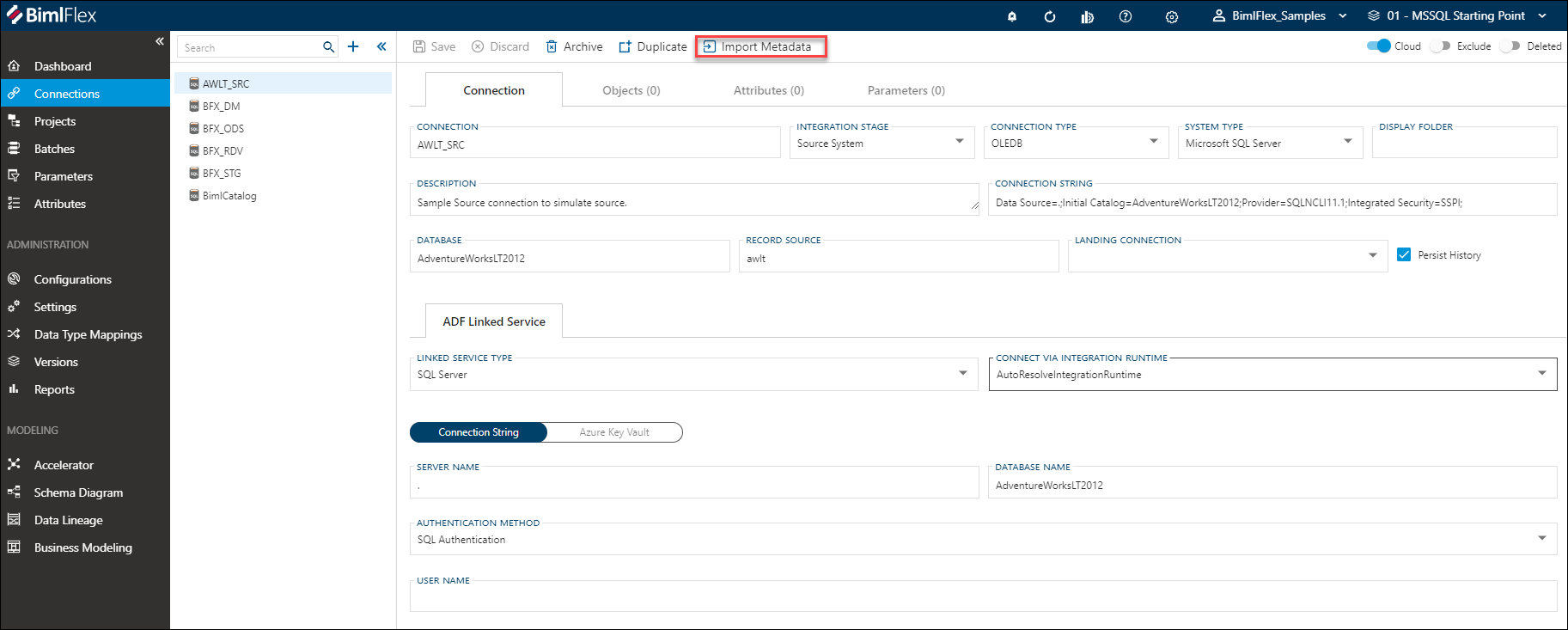
The import metadata feature can be used in any scenario where a schema is available, and there is a need to bring that metadata into a BimlFlex solution. If the data structure changes, the metadata can be imported again so that the model can be updated.
Importing metadata typically applies to connections that have been configured with the Source System Integration Stage - as a 'source connection'.
The Varigence YouTube channel contains various introduction videos about using BimlFlex and BimlStudio. This video provides an overview of how to import data structures as metadata into the BimlFlex database.
Import Metadata User Interface
There are a number of options for importing metadata. The user must align these options with the solution architecture and metadata conventions.

The example connection in the Sample Metadata is AWLT_SRC which points to the AdventureWorksLT database, using the project EXT_AWLT_SRC as the target project for imported metadata.
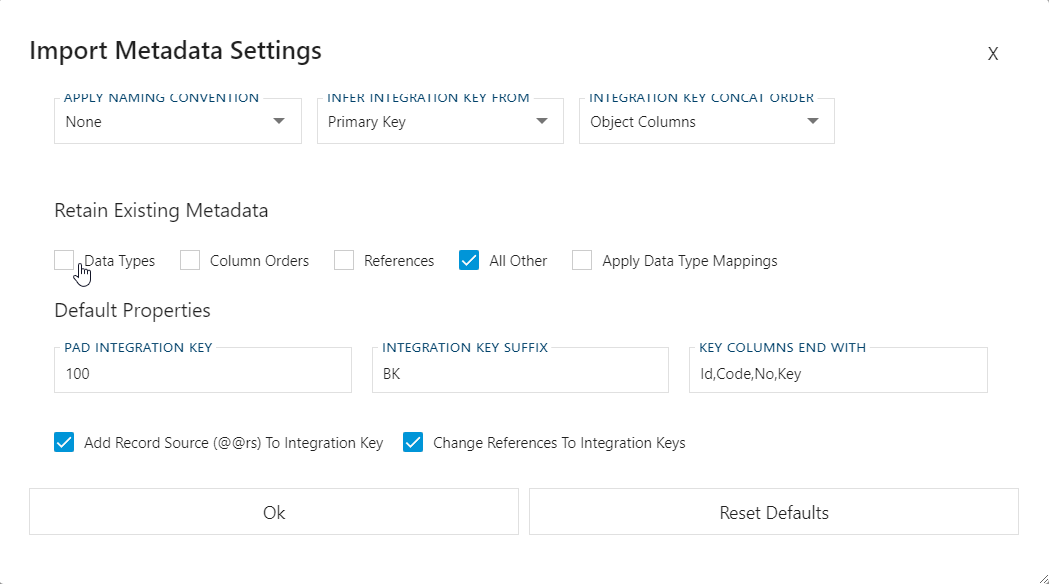
The main options are available in the Import Metadata Settings dialog, opened with the Settings button. A summary strip on the page shows the key settings currently in effect, with a Change link that opens the same dialog. These options control the behavior of the import, such as what object types to import, naming conventions to apply and what to retain if the metadata has been imported before.
Have a look at our recorded video covering how to import metadata using BimlFlex.
Metadata Options Definitions
This section provides a brief overview of the Import Metadata tool user interface.
Filter Tables and Schemas
The Schema Filter and Table Filter can be used to limit the metadata made available / visible for import. This is useful if a subset of available tables will be imported, or if new tables are added to an existing repository. Filtering also improves performance when connecting to and importing large database schemas.
Source and Target
| Option | Definition |
|---|---|
| Connection | Name of the connection that points to the data source the metadata is intended to be extracted from. The corresponding Connection String is used as defined in the Connections configuration. |
| Project | Name of the project that will use this metadata as its source in the source to target loading. This project has to be defined previously. For more information, please refer to the Projects documentation |
Table and column names
Naming convention to use for objects and columns. Options are:
None- This will retain the source system default naming conventions.PascalCase- E.g. "CustomerAddress"camelCase- E.g. "customerAddress"Proper_Case- E.g. "Customer_Address"Proper Case- E.g. "Customer Address"UPPER_CASE- E.g. "CUSTOMER_ADDRESS"lower_case- E.g. "customer_address"
Inferred Metadata
Where to infer the Integration Key from. Options are:
NonePrimaryKeyUniqueKeyFirstColumnIdentityColumnColumnName::[NameOfColumn]
When specifying ColumnName, a name needs to be added in the Import Metadata screen or specify ColumnName::UID to auto populate the column name field with UID.
Retain Existing Metadata
What existing metadata should be retained when doing an import of existing data. Options are:
Data TypesColumn OrdersReferencesAll Other, don't override anything else
The dialog also provides Apply Data Type Mappings and Show Export Button options.
To override everything, uncheck all checkboxes.
Default Properties
This controls default behavior of inferred Integration Keys.
- Pad Integration Key: Number of characters to pad the Integration Key to
- Integration Key Prefix or Suffix - based on your settings, it will auto populate a value which can be overridden here. It will add this value as prefix or suffix onto the column name to indicate Integration Key.
- Key Columns End With: When inferring key/reference names, what substring to look for at the end of a column name -
Id,Code,No,Key, or any custom string added.
More Options
- Add Record Source (@@rs) To Integration Key
- Change References To Integration Keys
- Import Views
Retrieve Objects for Import
Click the Preview button to retrieve the list of objects from the source connection. If the connection string is correct and the user has permissions to the schema, the list shows all the tables and views (if Import Views is selected in the settings) that are available for import.
Importable Assets
The Importable Assets list is read from the Source Connection. Choose items that should be included in the metadata import.
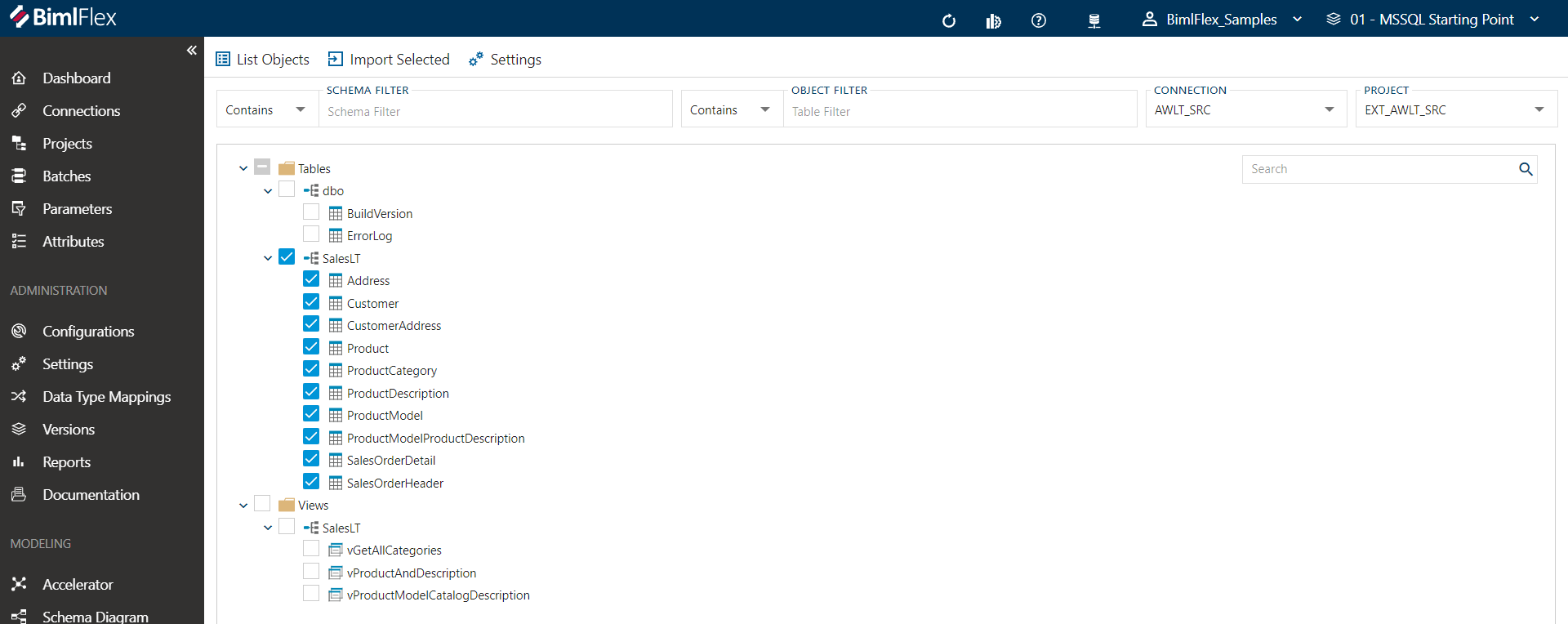
Upon clicking the Import button, the metadata will be imported into the BimlFlex Application and will be available for review and modeling.
Verify Imported Metadata
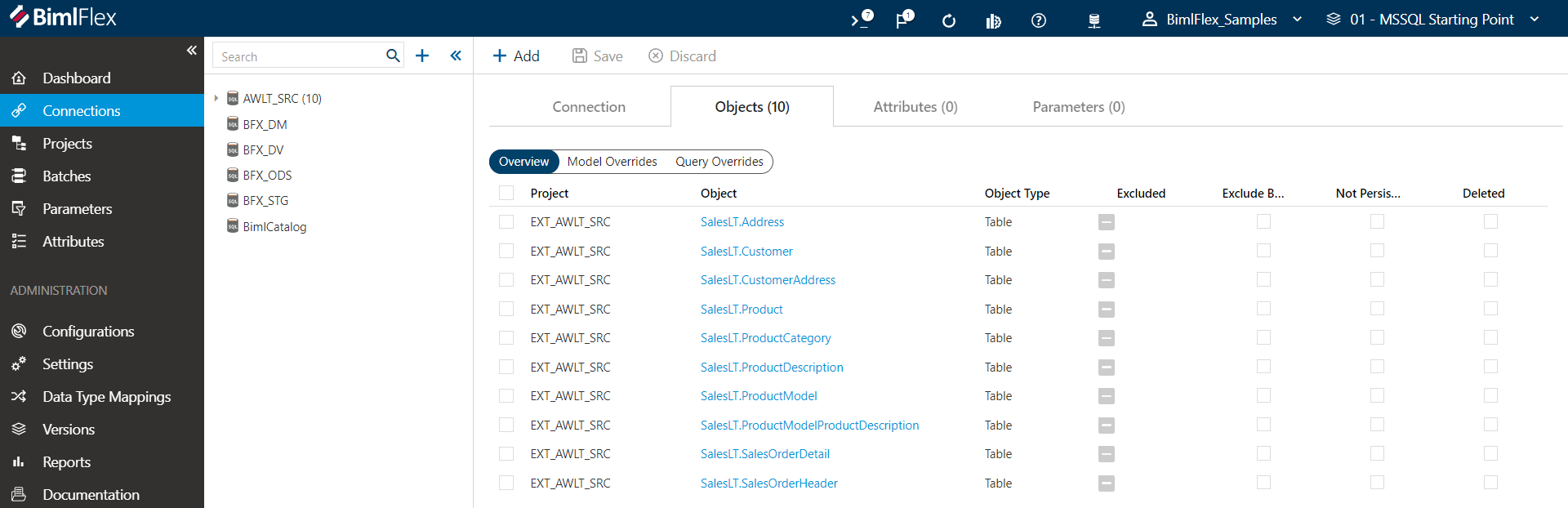
Navigate back to the Connection or Project and view the Objects tab. You should see all the newly imported Objects.
Import Metadata Over Existing Metadata
If there are changes to the source schema it is possible to safely run the Import Metadata on the same data again. Use the options to make sure you don't override anything you have changed after running the original import.
I.e. If a new column is available on a table where you modified the column ordinals, then check Column Orders under the Retain Existing Metadata options before you import the table.