Product Key Registration
As with most software programs, all Varigence applications (BimlExpress, BimlStudio, and BimlFlex) require unique product keys to confirm usership and activate paid features. Product keys for BimlExpress (the free Visual Studio add-in), as well as trial key(s) for BimlStudio, can be requested online. Non-trial product keys will be provided to users via confirmation email subsequent to having purchased a BimlStudio or BimlFlex license or subscription through the Varigence store.
Issue
Some machines (whether they lack an internet connection for security purposes or operate behind firewall restrictions) may be unable to validate a product key through traditional online activation.
In these situations, Varigence provides offline (machine-locked) product keys, which require a unique Machine Code from the computer that will be running BimlExpress, BimlStudio, or BimlFlex.
Resolution
To generate an offline key, you must first copy the Machine Code from the target machine. The steps differ depending on the product.
For BimlExpress 2026 and newer (VS Code)
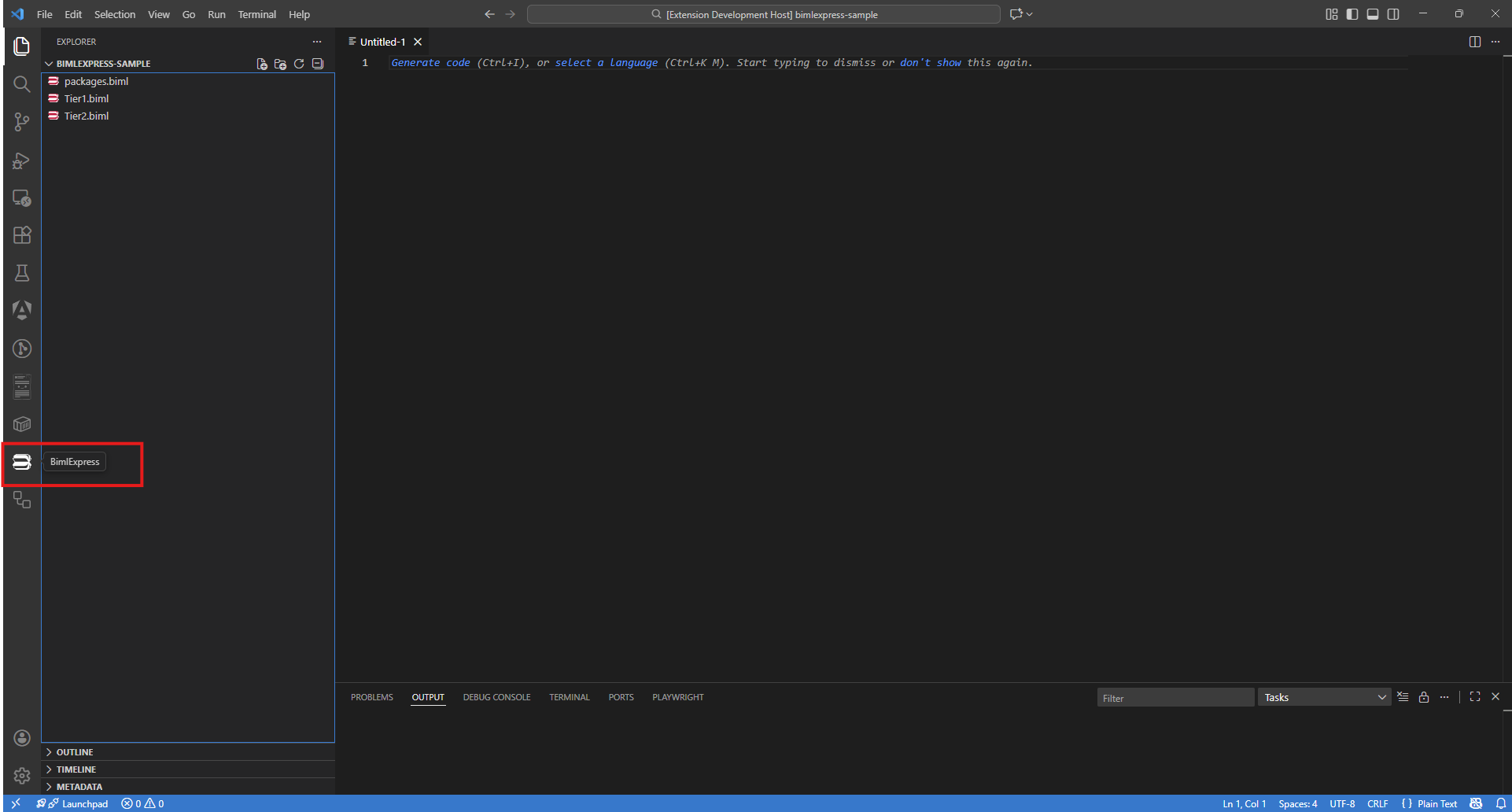
- In VSC Code, click the BimlExpress icon in the Activity Bar (left side).
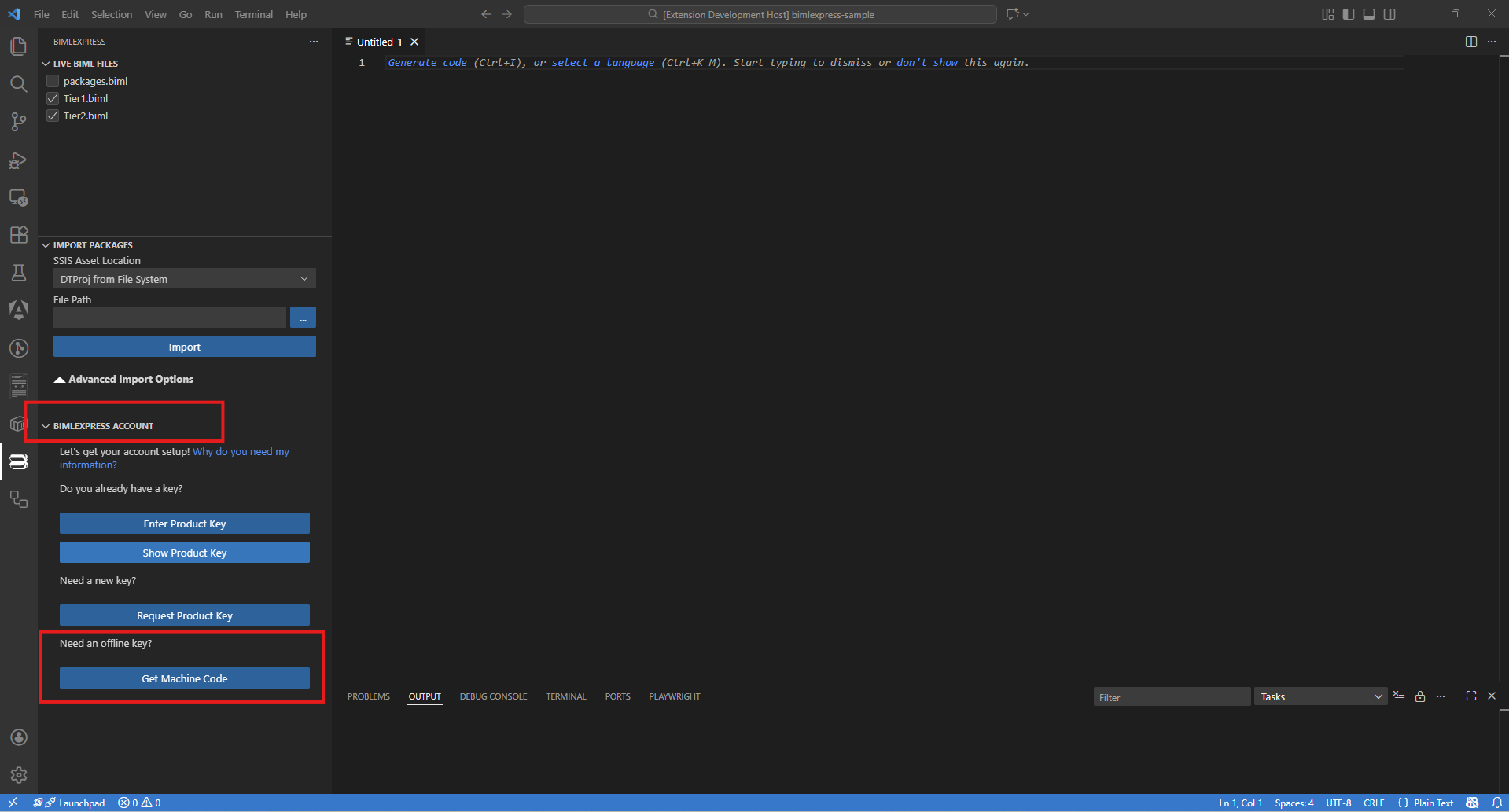
- In the BimlExpress sidebar, find the BIMLEXPRESS ACCOUNT section, then click "Get Machine Code" under the "Need an offline key?" section.
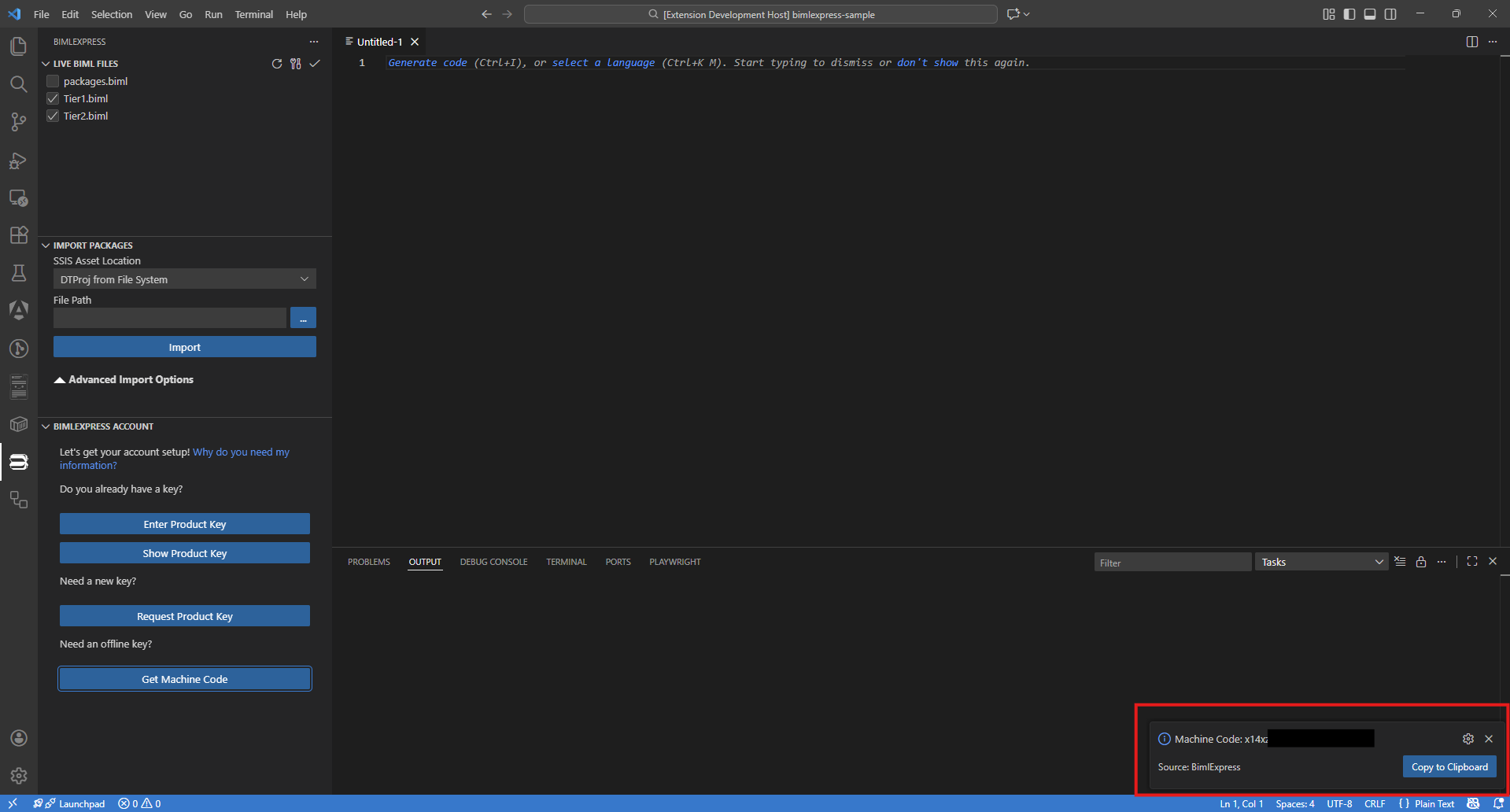
- A VS Code notification appears showing Machine Code: .... Click Copy to Clipboard.
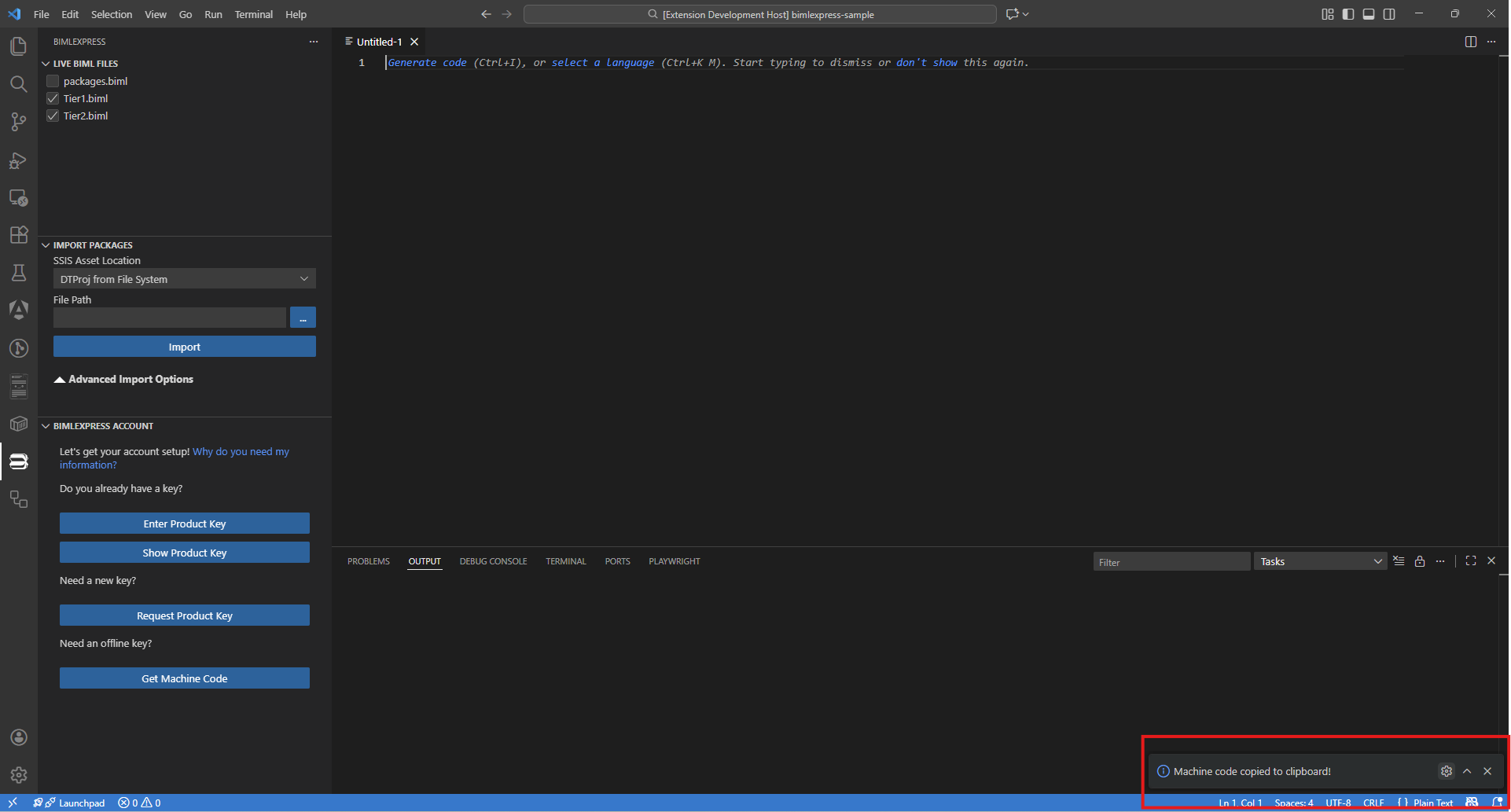
- You will see a confirmation toast: "Machine code copied to clipboard."
For Legacy BimlExpress (Visual Studio)
- Open Visual Studio.
- In the menu bar, select: Extensions > BimlExpress > About BimlExpress
- Click "Copy Machine Code".
For BimlStudio / BimlFlex
- Open BimlStudio.
- Click: File > Account > "Copy Machine Code"
Next steps (optional): Generate an offline key on the Varigence website
Once you’ve copied your Machine Code:
- Log in to the Varigence account associated with the product key at the account page.
- Alternatively, click the Account icon in the top-right corner of any Varigence web page.
- Product keys associated with your email will be displayed by license type (Subscription, Perpetual, Trial)
- Click the radio button next to a Product Key to select it.
- Paste your Machine Code into the Machine-Code field. Optionally, provide a Machine Name if desired.
- Click "Generate."

A window will pop up with an Offline Key linked to the Machine Code you provided.
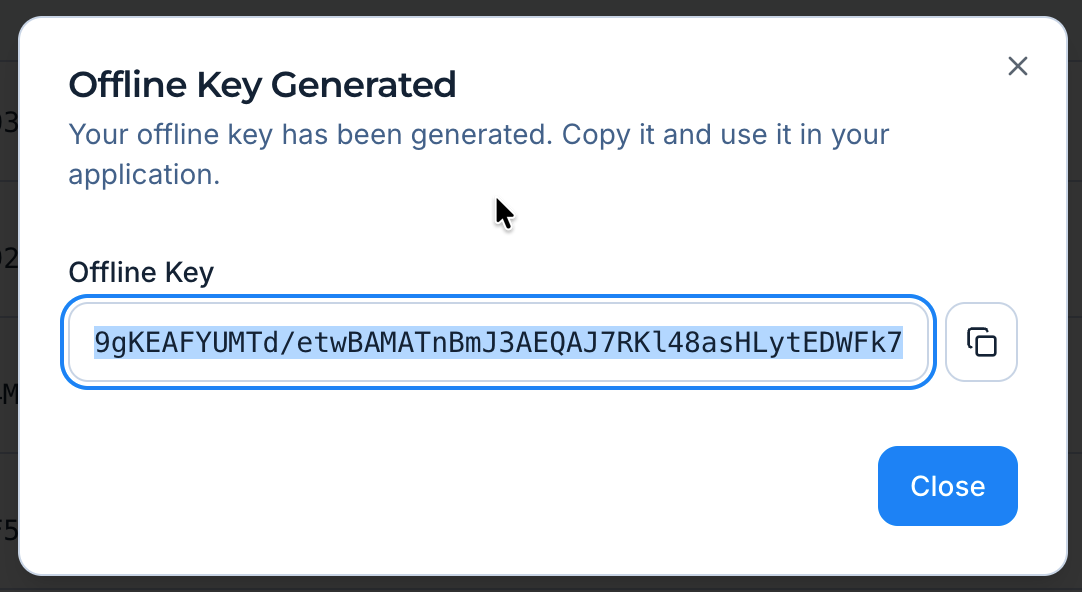
Copy the Machine Locked Key and paste it into BimlExpress or BimlStudio to activate the product without needing internet access.
Need help?
If the Machine Locked Key fails to generate, or if any other errors are encountered, contact Varigence Support. Include the Machine Code in your initial ticket for faster troubleshooting.