Varigence Customer Portal Guide
The newly redesigned Varigence Customer Portal lets users access and manage Varigence licenses that have either been purchased by you or assigned to you by an organization admin. Users can also self-serve on common needs, such as generating offline keys and, depending on when and how a license was purchased, manage subscriptions, update billing information, and view transaction receipts (PDF).
Access the Portal
- Go to the Customer Portal: https://account.varigence.com/
- Sign in with your account email and password.
If you don’t have an account yet, select Create Account on the sign-in screen.
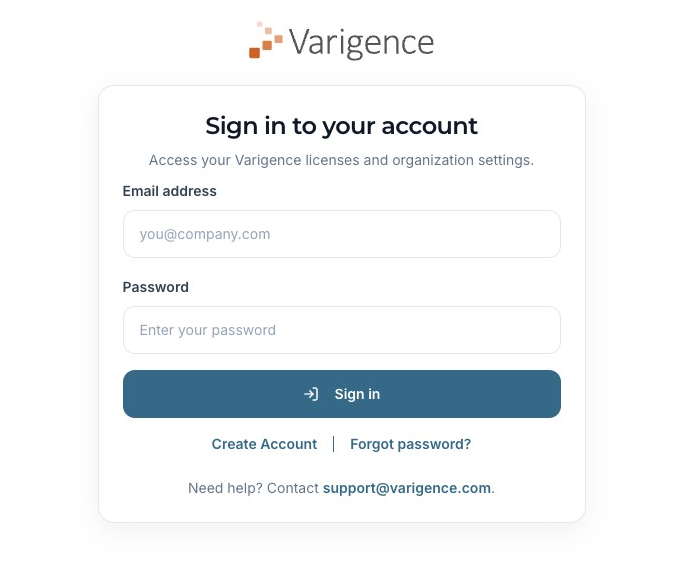
Note: Varigence migrated user accounts to a new system in May 2025. If you’ve never created a portal account, you’ll need to create one. If you already have an account, you may be prompted to set or reset your password on your first login.
What you can do as a User
Users have access to Varigence licenses that are either:
- Purchased by you (including free BimlExpress licenses), or
- Assigned to you by an organization admin.
View licenses by product
Licenses are organized first by license type:
- Subscriptions
- Perpetual
- Trials
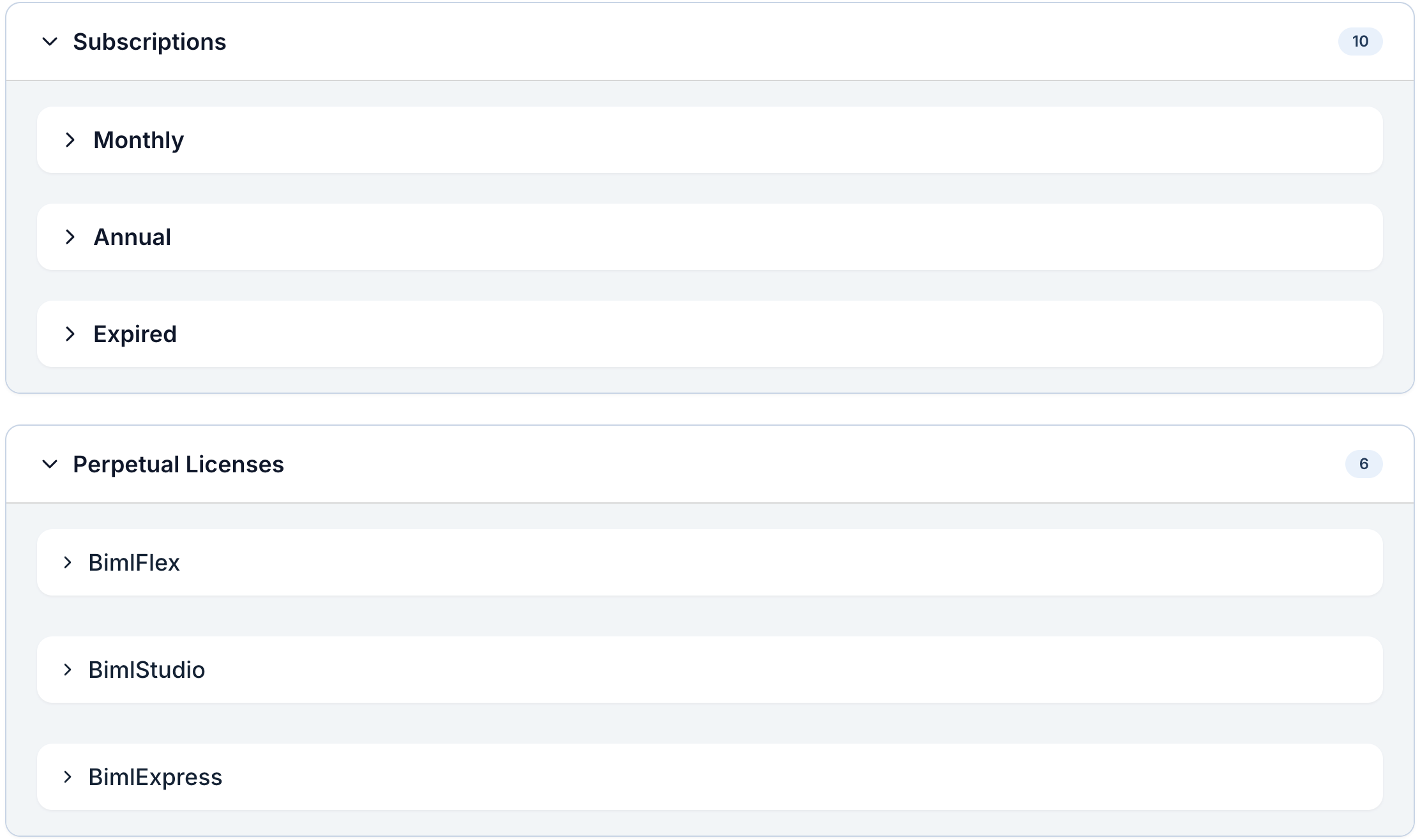
Within each license type, licenses are grouped by product and (where applicable) by term (for example, Monthly vs Annual). Licenses within contain a status badge (Active, Canceled, Expired) and a count of active licenses contained within each.
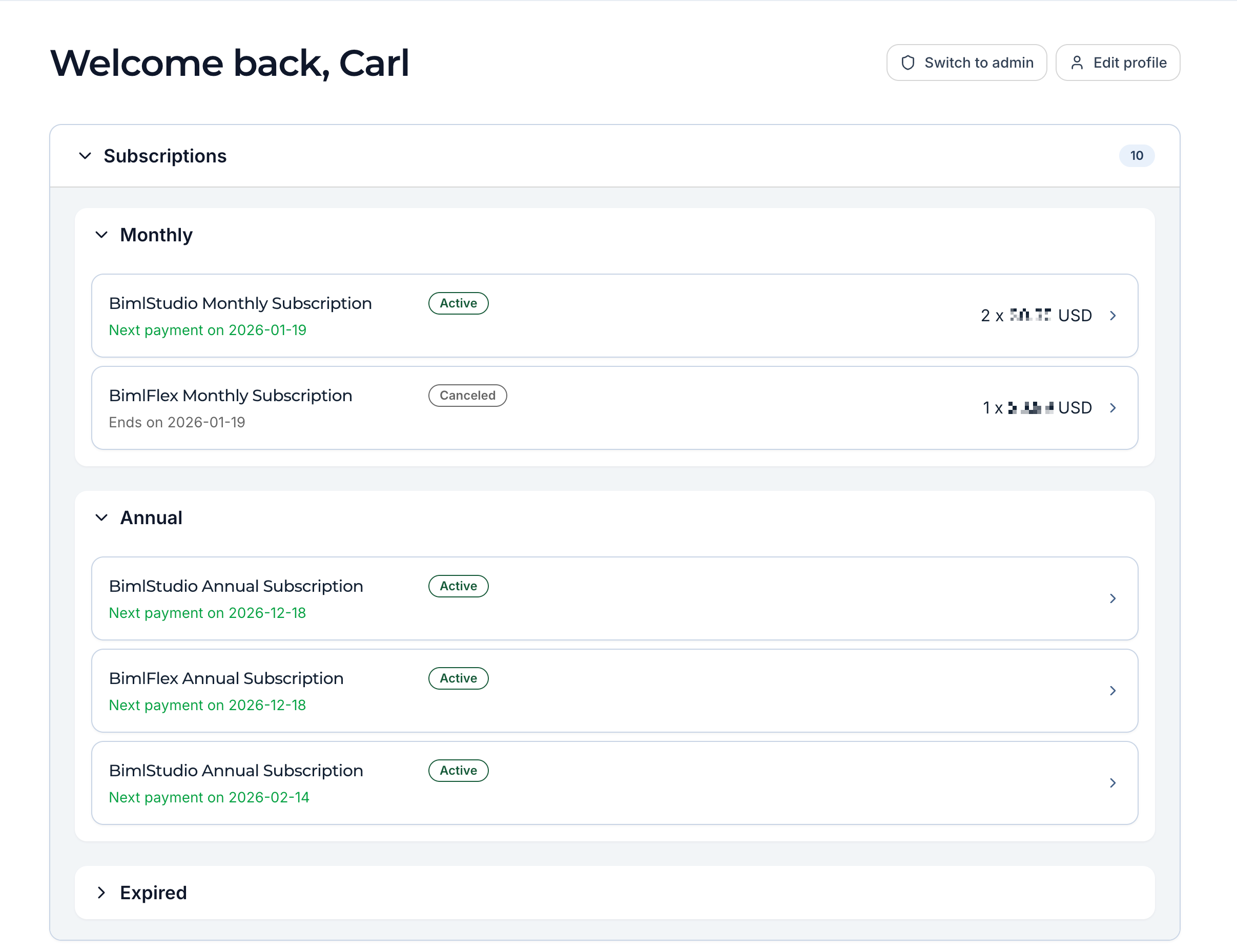
By default, users can only see and manage licenses that are purchased by them or assigned to them. For organizations that need more granular license and user management, Varigence also supports an Admin permission level, which comes with an additional screen only to permitted users. Read more below.
Edit your profile
Users can update basic profile information from the Edit profile button.
Generate offline keys
Users can generate an offline key (for machines that operate behind strict firewalls, or lack internet access entirely) from a license’s actions menu by first selecting the radio button next to the appropriate key and then clicking Generate Offline Key.

Enter your Machine Code (and optionally a machine name) and select Generate. See: How to locate your Machine Code. Copy the offline key and paste it into your application activation dialog in lieu of the traditional product key.
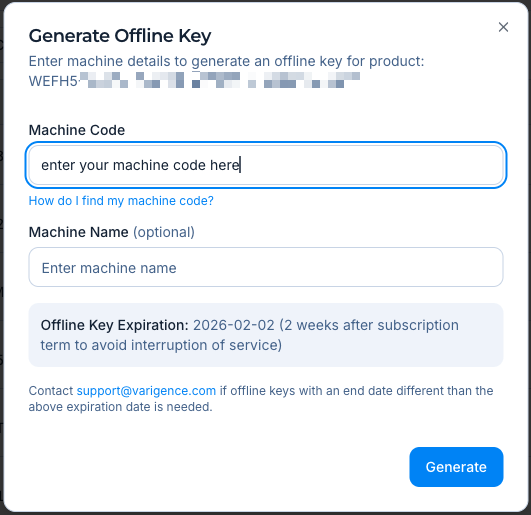
Offline key validity
- Subscription/trial licenses: Offline keys are valid through the end of the subscription term + 14 days to help avoid service interruption during renewal cycles.
- Perpetual licenses: Offline keys are valid for 2 years (BimlStudio, BimlExpress, and grandfathered BimlFlex perpetuals).
If you need an offline key with an end date different than what’s shown, contact Varigence Support.
Offline keys cannot be generated from expired subscriptions.
Manage subscriptions and billing (Storefront purchases after May 2025)
For licenses purchased through the Varigence Storefront after May 2025, you can:
- Cancel subscriptions (cancels all licenses in that subscription)
- Modify subscriptions (reduce license quantity)
- Update billing information / payment method
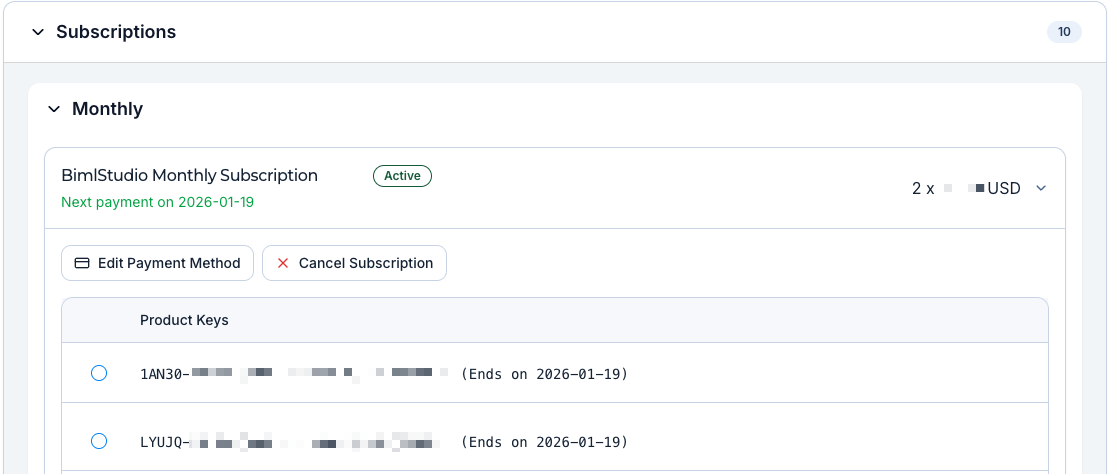
In the subscription details, you can access actions like Edit Payment Method. You will also see subscription actions like Cancel Subscription which will bring up a list of licenses associated with a subscription to either cancel all or modify your subscription quantity.
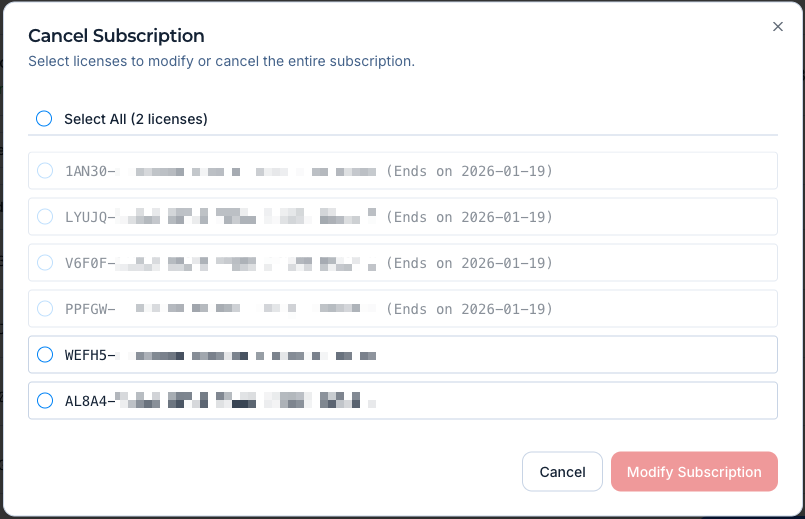
Changes are typically reflected in the portal shortly after they’re made.
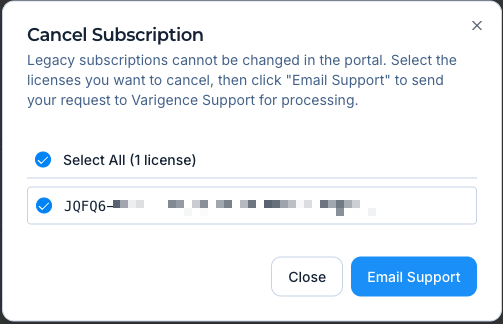
For storefront purchases made before May 2025, users can still view and manage their licenses in the Customer Portal, but subscription cancellations and quantity changes must be processed by Varigence Support, and billing information can’t be updated through the portal.
View transactions (Storefront purchases after May 2025)
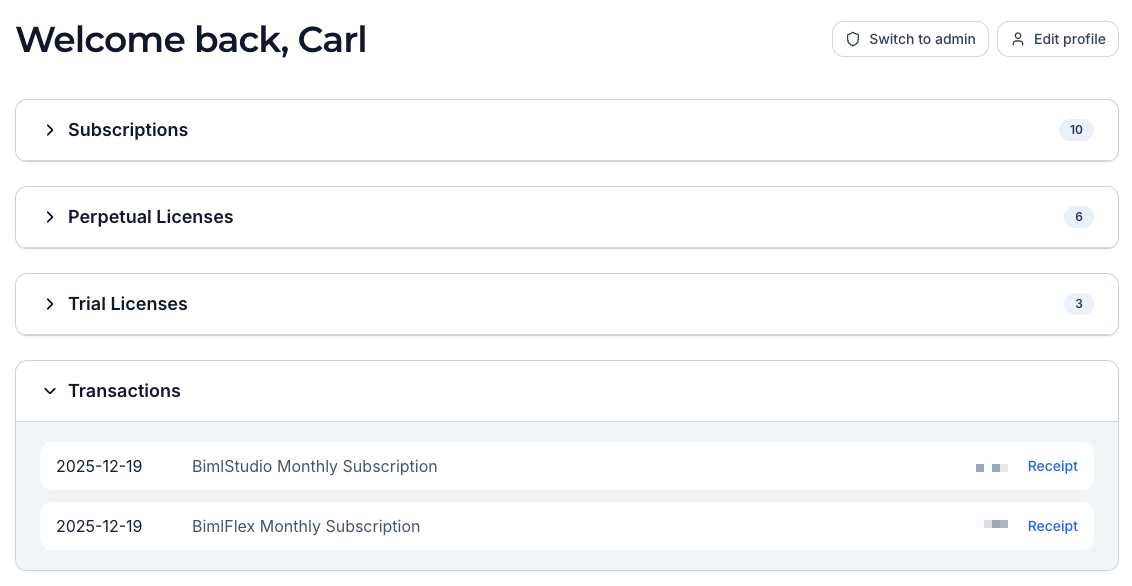
If your licenses were purchased through the Varigence Storefront after May 2025, you can view your Transactions and open PDF receipts also.
What you can do as an Admin
Admins can do everything a User can, plus manage organization-level access, user roles, and license assignments (and, in some cases, billing).
In the default User view, you’ll only see licenses that are assigned directly to you (if any exist). Some Admins may not have licenses at all and may use the portal only to manage users and licenses for their organization.
Note: The first Admin for an organization must be assigned by Varigence Support. Email [email protected] and request Admin permissions for the organization. Once an Admin is set, they can add subsequent Admins and Users directly in the portal.
Switch to Admin view
If you have admin privileges, use the Admin button from the portal header/menu.

Admin Summary View
In Admin view, you’ll see summary cards showing Active/Total Subscriptions, Total Perpetual Licenses (including BimlExpress and perpetual licenses that may have SMU, such as BimlStudio), and Active Trials. These summary counts are not available in the standard User view.

Manage organization users
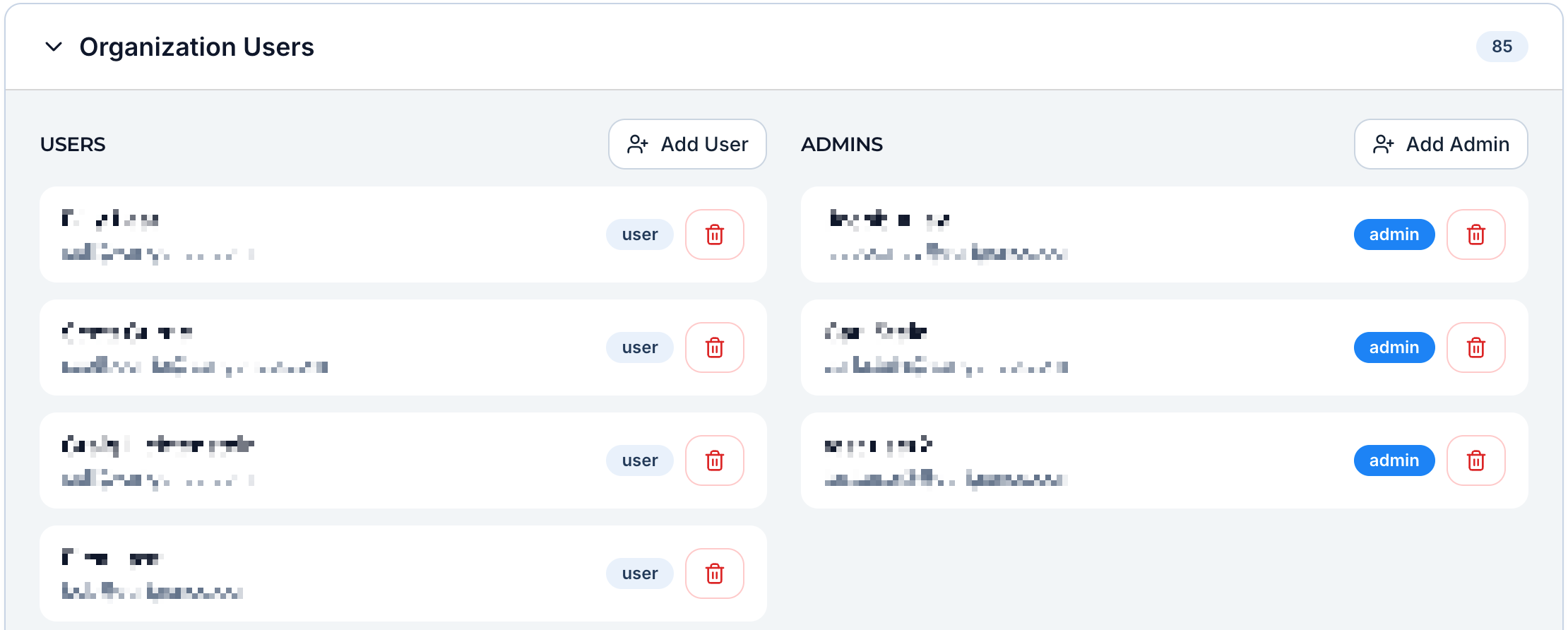
Admins can view Organization Users and add users to the organization.
Add additional admins
From Organization Users, admins can promote another user by selecting Add Admin and completing the prompts.
Reassign licenses
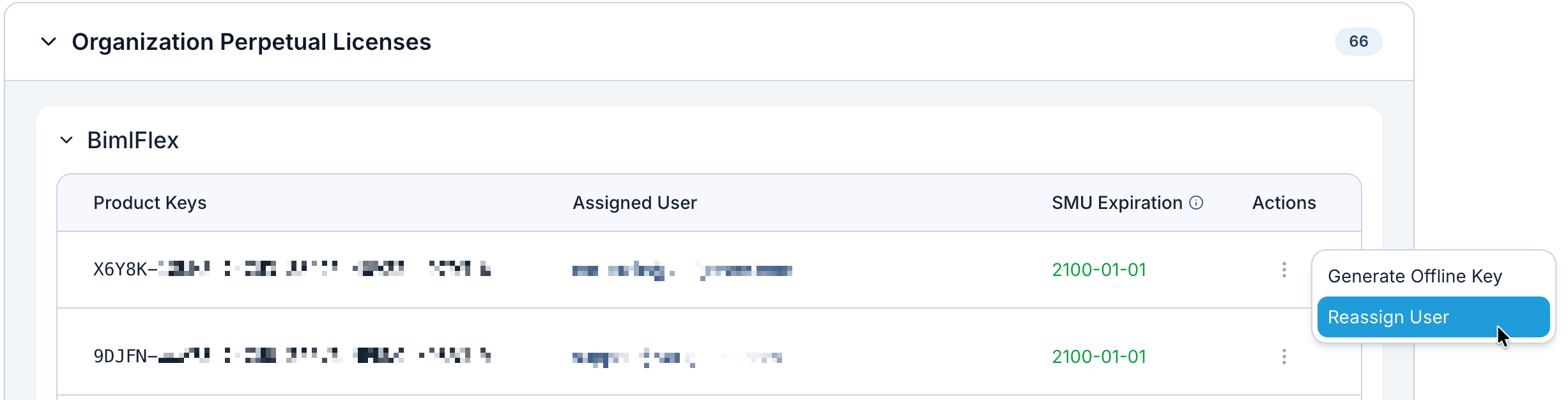
Admins can reassign licenses to another user from Organization Users, via Reassign User on an eligible license.
Generate offline keys on behalf of users
Admins can generate offline keys for organization users (for example, to help a user who can’t access the portal). Offline key expiration rules are the same as in the User section.
Organization-level subscriptions, licenses, and transactions
Admins can access organization-level views such as:
- Organization Subscriptions
- Organization Perpetual Licenses
- Organization Transactions
Billing actions (like payment method changes) are available when the subscription was purchased through the Varigence Storefront after May 2025.
License types and visibility
Licenses are organized into the following categories:
Subscriptions
- BimlFlex Annual, BimlFlex Monthly
- BimlStudio Annual, BimlStudio Monthly
Expired
- Expired subscriptions only
Perpetual
- BimlFlex (grandfathered / no longer offered)
- BimlStudio (with SMU expiration as applicable)
- BimlExpress (free product, always perpetual)
Trials
- Trial keys (visible only when active)
To keep the portal clean, visibility prioritizes active and enabled licenses. Expired trials or disabled keys are hidden from view, but Expired Subscriptions remain visible for purchase tracking and license history.
Need help?
If you run into access issues, licensing questions, or offline key exceptions, contact Varigence Support at [email protected].