
Dashboard
Welcome to BimlFlex! The BimlFlex Dashboard is the first screen you will see when opening BimlFlex. The dashboard provides a quick overview of the metadata in the active Customer and Version, and supports the most common tasks and navigation options.
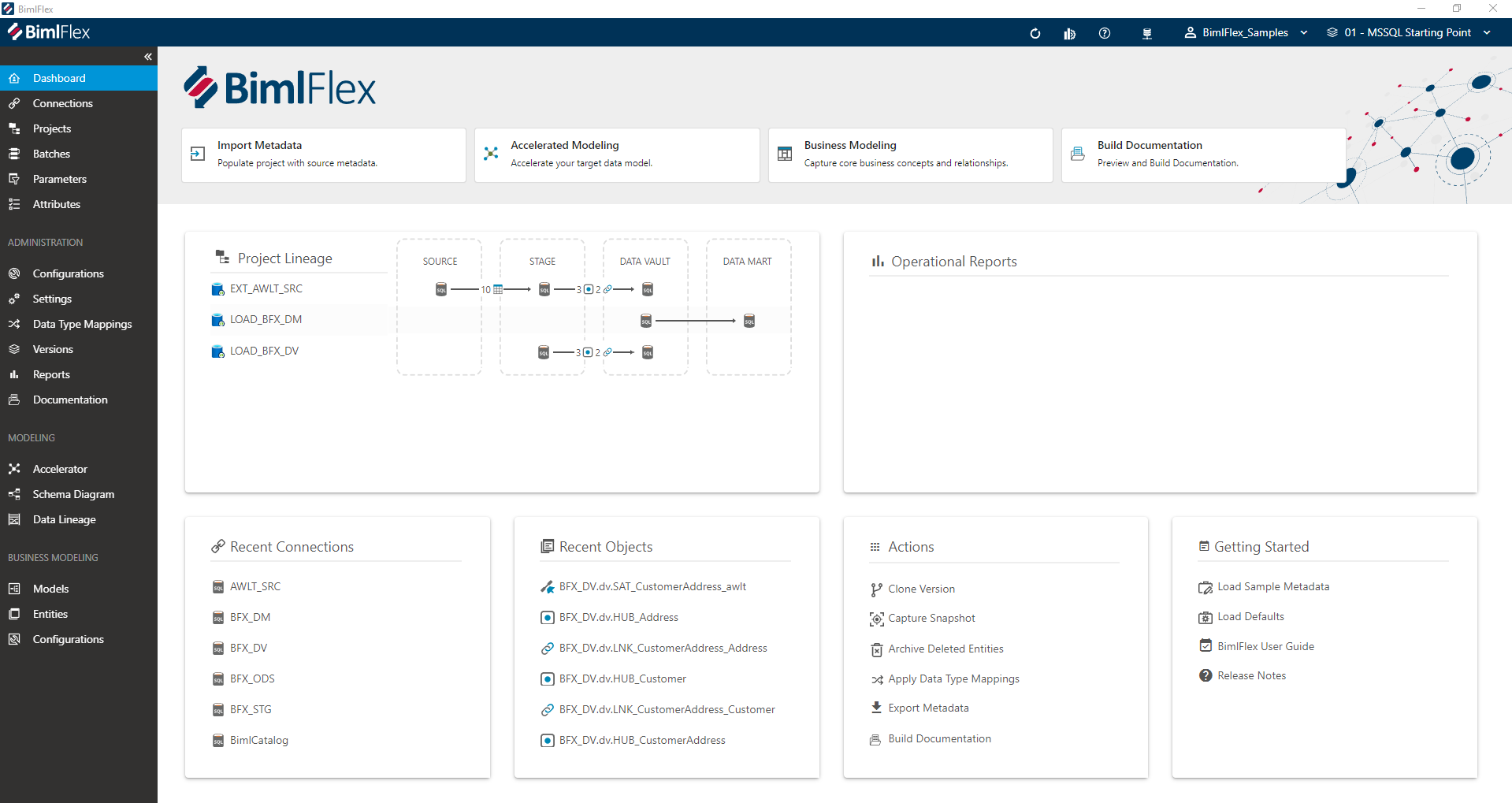
Dashboard Top Selections
At the top of the Dashboard is a set of action cards. Among them are these three.
- Import Metadata will navigate to the Import Metadata screen for your Source Connection.
- Load Sample Warehouse opens the Sample Gallery. When the metadata is a file store, the card is named Open Sample Project.
- Build Documentation opens the Documentation screen.
First-Build Checklist
The Your first build checklist lists the steps from Connect your workspace to Run your first build and ticks off each step it finds done. When every step is done, it shows You've built your first warehouse. in place of the steps. When you close it, Show First-Build Guide in the More Actions menu shows it again.
Health Score
The health score pane shows the overall score in a ring and a card for each of Completeness, Naming, Modeling Coverage and Data Quality with the score of that category, each score as a percentage or a dash. Click a category card to scroll the Dashboard to the Recommendations pane.
Recommendations
The Recommendations panel lists up to ten recommendations for your metadata, with Errors, Warnings and Info buttons that filter the list. Click Open on a recommendation to go to the place where you can act on it. When the list holds more than ten, View all opens the list on the Recommendations screen.
Project Lineage
The Project Lineage pane shows up to three projects, each with its Integration template and its Pushdown setting. For each project, a diagram shows the connections set on the project, other than its Polybase Connection and Compute Connection.
Click the name of a project to open it in the Projects editor.
- Below the projects, Pipeline Flow & Lineage shows the number of objects and connections in each of the Source, Persistent Staging, Integration and Presentation stages.
- Business Modeling shows the number of Models and Entities, and under Source Mapping how many of the source objects are mapped to an entity. With no business model yet, it shows a Create Business Model link instead.
- Connections lists each connection with its number of objects and a label that reads modeled, not modeled or, for a source connection, a number followed by unmapped. Click a connection to open it in the Connections editor.
Package Runs
The Dashboard does not show package runs. The runs that your solution logs in the BimlCatalog database, with the details and errors of each run, are shown in the BimlFlex Operations Center.
Action Buttons
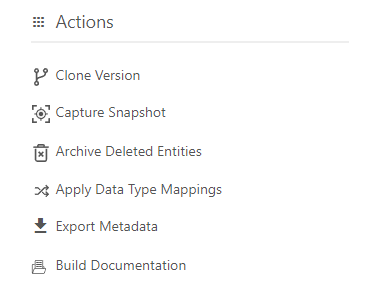
- When the metadata is a file store, a Commit card opens the Commit changes dialog, and History and Compare take the place of Clone Version and Snapshots.
- More Actions opens a menu with Recommendation Settings, Archive Deleted Entities, Load Defaults and Show First-Build Guide. When the dashboard does not show Apply Data Type Mappings as a card, the menu also holds it, with Clone Version and Snapshots, or in a file store History and Compare.
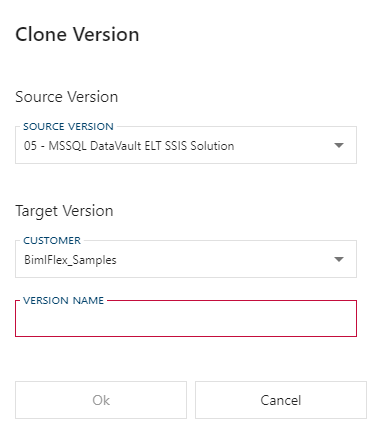
Clone Version
Clone the current version to a new version.
Snapshots

Click the Snapshots card to open its menu: Capture, Rollback, Archive and Clone. In a metadata database, when the dashboard shows no Snapshots card, the same menu opens from Snapshots in the More Actions menu. When the metadata is a file store, the dashboard has no Snapshots card and no Snapshots menu.

- Capture - Capture a snapshot of the current version's metadata.
- Rollback - Rollback this version from a previous metadata snapshot.
- Archive - Archive (delete) the snapshots of the current version that match the snapshot type and age you choose. Snapshots of other versions are kept, and an archived snapshot cannot be restored.
- Clone - Clone a snapshot to a Customer and Version. Create a new version or override an old version.
Archive Deleted Entities
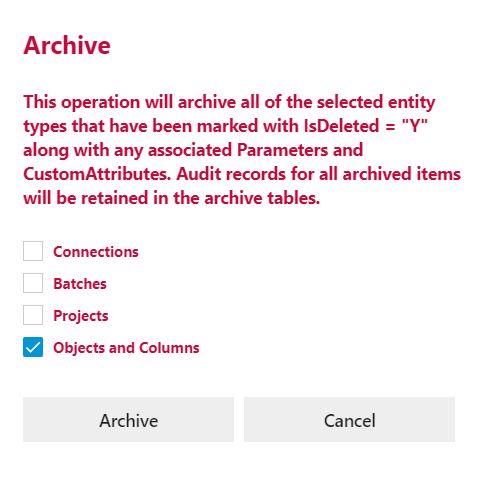
Archive deleted entities of the selected types. Be aware that this action cannot be undone.
Apply Data Type Mappings
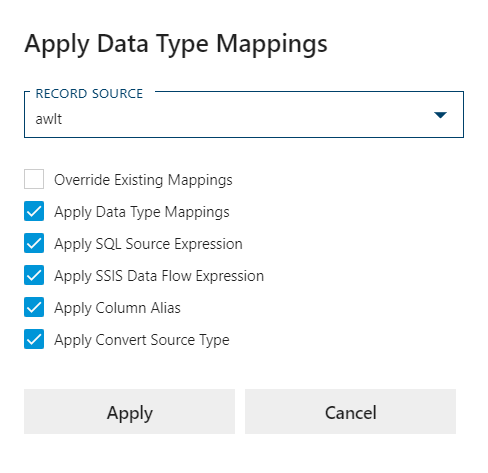
The Data Type Mappings are added to all columns for a specific Record Source
See More info.
Export Metadata
Export metadata creates a zipped file which includes the current version's metadata and an info file. This is especially useful for support purposes.
Samples and Defaults
In a metadata database, the Load Sample Warehouse card opens the Sample Gallery. Load Defaults is in the More Actions menu.
Load Sample Warehouse
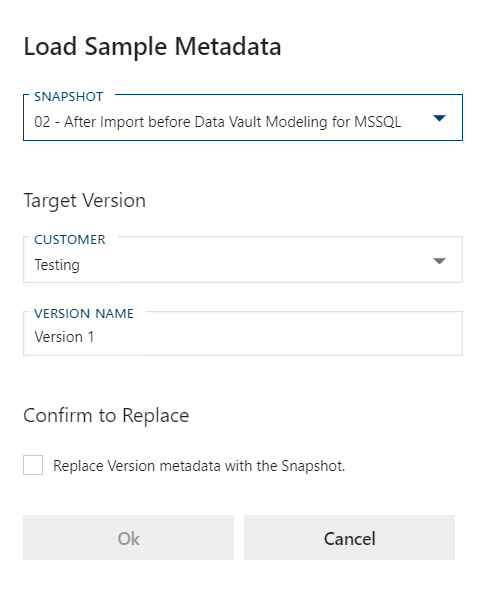
Contains complete sets of Metadata to serve as an example for users to refer to. These examples are also useful when following along with the Getting Started Videos.
More info about the various Sample Metadata sets.
Load Defaults
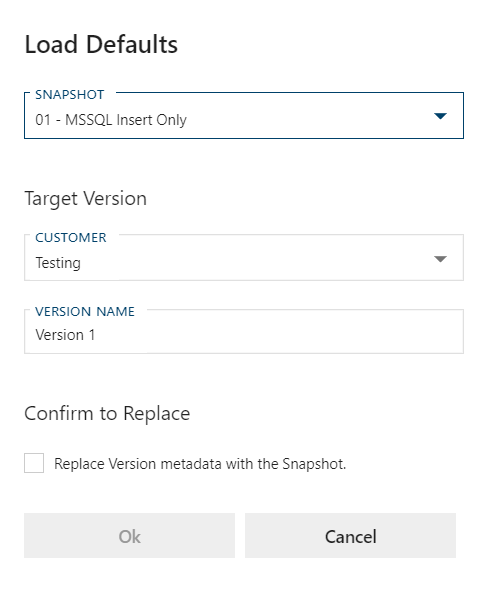
Load Defaults writes the settings and system columns of the Snapshot you choose into the target version. The dialog also calls the snapshot the Starting Point. A setting or system column that the version already holds under the same key is replaced, including one you have changed or deleted. Settings and system columns that you added under other keys stay. The load copies no projects, connections, objects or columns into the version. A version that the load creates also receives the standard data type mappings. If the Version Name you enter does not exist yet, the load creates that version. In a metadata database, loading a sample from the Sample Gallery, in contrast, removes all metadata of the selected version before it loads the sample.
Before the load runs, you tick the confirmation, which reads "Load the chosen Starting Point into this version. This replaces the version's settings and system columns."
When the metadata is a file store, the dialog has no target version. The load writes the settings that the snapshot carries, replacing the values you changed, and leaves every other setting and all system columns as they are. The confirmation reads "Seed this workspace's settings from the chosen Starting Point. Settings the Starting Point carries are replaced, every other setting stays."