BimlCatalog Database
The BimlCatalog database ('BimlCatalog') contains the orchestration and run time information needed to properly load the data solution. It logs audit information and errors from processes and provides orchestration for batches in case failures occur, mid load.
The BimlCatalog database contains crucial data for the data warehouse auditing, logging and orchestration. It is important to back up and maintain a disaster recovery policy that matches the organizational requirements for this database.
The BimlCatalog requires a SQL Server to be installed into. This can be an Azure SQL Database, a Managed Instance or a SQL Server database that is accessible through a Self-Hosted Integration Runtime. Using the deployment assets it is possible to deploy the BimlCatalog in a database that contains other objects as well, but the best practice and most common approach is to deploy the BimlCatalog into its own dedicated database.
Installation
There are various different methods used to install the BimlCatalog:
- Using the BimlFlex installer, or
- Install the BimlCatalog via BimlStudio, or
- Installing the BimlCatalog via the command line
Installing the BimlCatalog Database using the Installer
Enable the Database Installation
On the first pane of the installation process, there is the option to setup and install the BimlCatalog databases. Check this box before continuing.

Setting the Connection Strings
Proceed through the setup until the "Install or Upgrade BimlFlex Databases" screen is reached. This represents the location(s) of the BimlFlex databases to be installed.
Click Test to test the target connection and ensure that it is valid. Test will change to Valid once confirmed.
Once a working connection string has been validated, click the Add button to finalize the database configuration.
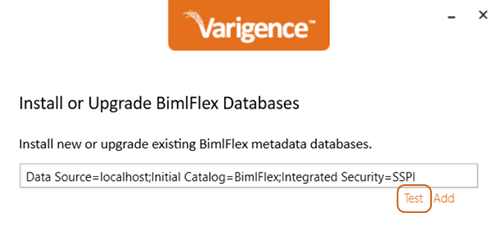
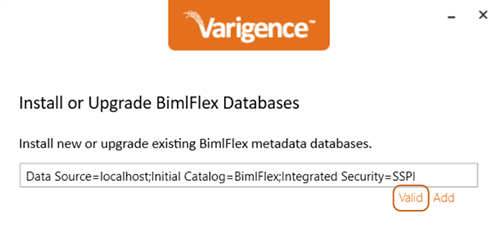
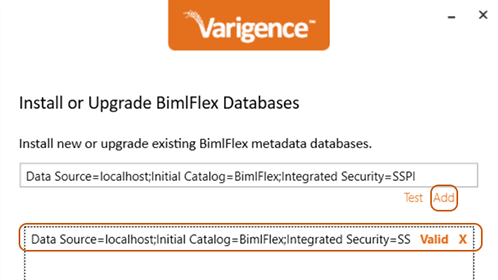
The desired installation location is now saved and will be used to install the database.
It is important to back up any databases prior to an upgrade.
Before finalizing the BimlCatalog upgrade or installation, examine the Pending Actions list. Ensure that there is a pending action that corresponds to the desired database installation.
Press Upgrade or Install to finalize the database installation or upgrade.
Installing the BimlCatalog Database from BimlStudio
Open the Project in BimlStudio
Alternatively, it is also possible to install the databases from the BimlFlex project in BimlStudio.
In order to setup the databases, first create a BimlFlex project for BimlStudio. When the BimlFlex project is opened in BimlStudio, the metadata database setup option is available in the BimlFlex Ribbon.

Setting the Connection String
Set up the databases through the Setup BimlFlex dialog.
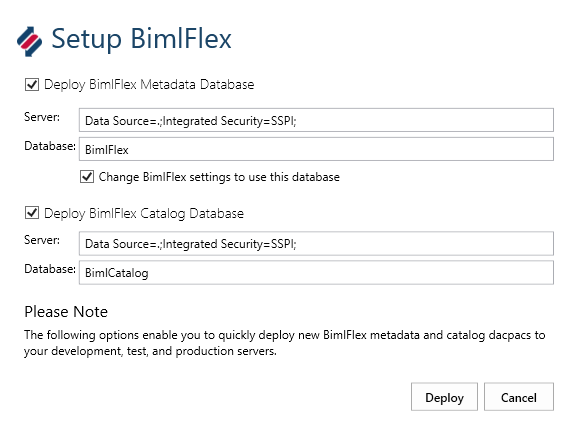
Configure the connection string to point to the database instance where the database should be created.
Change the name of the databases from its default, BimlCatalog, as needed.
Deployment
Click Deploy to deploy the databases
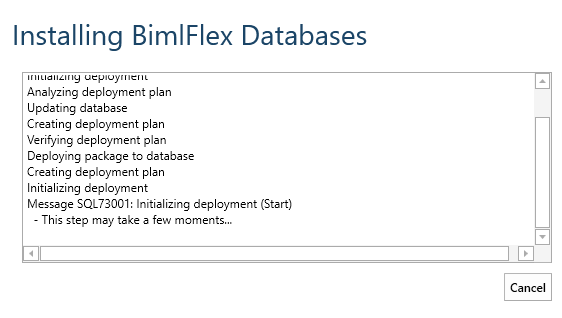
Once setup completes, configure the BimlFlex Project and BimlFlex Applicationmetadata connections to use the new BimlFlex database. Configure The project and the Operational Reports to use the BimlCatalog database.
Command Line/Terminal-Based Installation
To deploy the databases using the Microsoft SqlPackage.exe application (https://docs.microsoft.com/en-us/sql/tools/sqlpackage), or a similar task/process, the following process can be used.
The BimlFlex metadata database and BimlCatalog orchestration and auditing databases are delivered as dacpac files, with a pre-upgrade script for upgrades of existing databases. The dacpac and pre-upgrade script files can be extracted from BimlStudio.
Open a BimlFlex project in BimlStudio, navigate to the BimlFlex Ribbon UI tab, click the Debug Utilities option, click Extract DACPAC Folder button.
Once the dacpacs and scripts are available, it is possible to deploy them to a target using the SqlPackage.exe application.
Note that any existing database must be updated by first running the corresponding BimlFlex_PreDacpac_Deployment.sql or BimlCatalog_PreDacpac_Deployment.sql script.
BimlCatalog Contents
Parameter values
The BimlCatalog allows for tracking of a variety of parameter values. These can be parameters that are used in packages, pipelines, SSIS projects, and more. This provides the user with a central location to handle parameter values.
Orchestration
All orchestration information is maintained within the BimlCatalog database tables. This includes Azure Data Factory pipelines and SSIS Packages and Tasks.
BimlCatalog Approach
The BimlCatalog database is open, and can be queried by the data team. It also provides an abstraction layer through Stored Procedures for interacting with the data.
Reporting Views
For reporting there are views provided that simplifies querying information about the data pipelines. Some of these are available from the BimlFlex Application, and additional reporting can be found as part of the open source BimlFlex Community Repository.
Specifically, a Power BI Dashboard is available in the BimlFlex Community Repository that displays overview statistics as well as more detailed information about the pipeline executions recorded in the BimlCatalog database.
Maintenance
Maintaining the BimlCatalog database
The amount of detailed data stored in the BimlCatalog database can be maintained through the following Stored Procedure:
[bfx].[ArchiveAll]
This stored procedure calls the following individual administrative tasks
EXEC [bfx].[ArchiveRowAudit]EXEC [bfx].[ArchiveRowCount]EXEC [bfx].[ArchiveTaskExecution]EXEC [bfx].[ArchiveAuditLog]EXEC [bfx].[ArchiveConfigVariable]
Each of these procedures moves rows past its configured retention window out of the live tables and into the archive schema. As of the BimlFlex 2026 hotfix these archive procedures delete in 5000-row batches rather than a single set-based DELETE, which keeps lock escalation and transaction log growth under control on large history tables.
The number of days used for data retention for the different tables are specified in the configuration table in the database:
[admin].[Configurations]
These are the default retention periods for the tables:
| ConfigurationKey | ConfigurationValue |
|---|---|
| ConfigVariablePeriod | 120 |
| AuditLogRetentionPeriod | 120 |
| RowAuditRetentionPeriod | 30 |
| RowCountRetentionPeriod | 90 |
| TaskExecutionRetentionPeriod | 30 |
As of the BimlFlex 2026 hotfix, archiving is no longer automatic. Earlier releases called [bfx].[ArchiveAll] synchronously at the end of every batch, controlled by the AutoArchive key in [admin].[Configurations]. That inline call could delete large volumes of history in a single transaction, and on busy systems it contended with concurrent loads and caused transactional deadlocks. For that reason the inline call has been removed, the AutoArchive key is now deprecated (its seed default for new installs is '0'), and archiving must be scheduled by the customer. Use the SQL Server Agent job below, or an equivalent scheduler, to run the archive on a regular off-hours cadence.
Maintaining the BimlCatalog database using SQL Server Agent
Because archiving is no longer triggered during execution, schedule [bfx].[ArchiveAll] to run on a regular off-hours cadence. The following script creates a weekly job (Sunday 02:00 server-local time by default) that runs [bfx].[ArchiveAll] from SQL Server Agent. The script is idempotent: re-running it drops the existing job and recreates it.
Before running, replace the placeholder tokens:
<BIMLCATALOG_DB>is the name of the BimlCatalog database (for example,BimlCatalog).<JOB_OWNER_LOGIN>is the SQL login that should own the job (for example,sa).
The job step runs the archive call with DEADLOCK_PRIORITY LOW and LOCK_TIMEOUT 60000 so that maintenance yields to live workload on lock contention rather than blocking it. To use a different schedule, edit @freq_interval (a weekday bitmask: Sun=1, Mon=2, Tue=4, Wed=8, Thu=16, Fri=32, Sat=64) and @active_start_time (HHMMSS, 24-hour) near the bottom of the script. The caller must be a member of SQLAgentOperatorRole or sysadmin in msdb.
USE [msdb];
GO

-- Everything below runs in ONE batch so a placeholder-validation failure
-- aborts the entire job (re)creation. Do NOT add a GO inside this block;
-- splitting on GO would let later batches run after RAISERROR + RETURN.
SET XACT_ABORT ON;

DECLARE  @JobName       SYSNAME = N'BimlCatalog - Weekly Archive'
        ,@JobCategory   SYSNAME = N'Database Maintenance'
        ,@JobOwner      SYSNAME = N'<JOB_OWNER_LOGIN>'
        ,@DatabaseName  SYSNAME = N'<BIMLCATALOG_DB>'
        ,@JobId         UNIQUEIDENTIFIER;

-- Fail closed if the customer ran this script without filling in the tokens.
-- Validation runs BEFORE the sp_delete_job below so re-running an unmodified
-- template never destroys a previously-correctly-configured job, and uses
-- THROW so the batch (and the rest of this script) is aborted immediately.
IF @JobOwner LIKE N'%<%>%' OR @DatabaseName LIKE N'%<%>%'
BEGIN
    THROW 50001, N'bimlcatalog-archive-weekly-job.sql: replace <JOB_OWNER_LOGIN> and <BIMLCATALOG_DB> with real values before running.', 1;
END

-- 1. Drop the job if it already exists so this script is idempotent.
IF EXISTS (SELECT 1 FROM msdb.dbo.sysjobs WHERE name = @JobName)
BEGIN
    EXEC msdb.dbo.sp_delete_job @job_name = @JobName, @delete_unused_schedule = 1;
END

-- 2. Create the job, step, schedule and target server.
EXEC msdb.dbo.sp_add_job
     @job_name              = @JobName
    ,@enabled               = 1
    ,@description           = N'Calls [bfx].[ArchiveAll] in the BimlCatalog database to move execution / audit history past the configured retention windows out of the live tables and into the archive schema. Replaces the per-batch AutoArchive call previously embedded in adf.LogExecutionEnd.'
    ,@category_name         = @JobCategory
    ,@owner_login_name      = @JobOwner
    ,@notify_level_eventlog = 2  -- on failure
    ,@job_id                = @JobId OUTPUT;

EXEC msdb.dbo.sp_add_jobstep
     @job_id           = @JobId
    ,@step_name        = N'EXEC bfx.ArchiveAll'
    ,@subsystem        = N'TSQL'
    ,@database_name    = @DatabaseName
    ,@command          = N'SET NOCOUNT ON;
SET DEADLOCK_PRIORITY LOW;
SET LOCK_TIMEOUT 60000;
EXEC [bfx].[ArchiveAll];'
    ,@on_success_action = 1   -- quit reporting success
    ,@on_fail_action    = 2   -- quit reporting failure
    ,@retry_attempts    = 0;

EXEC msdb.dbo.sp_add_jobschedule
     @job_id                = @JobId
    ,@name                  = N'Weekly Sunday 02:00 (local)'
    ,@enabled               = 1
    ,@freq_type             = 8     -- weekly
    ,@freq_interval         = 1     -- 1=Sunday (bitmask: Sun=1, Mon=2, Tue=4, Wed=8, Thu=16, Fri=32, Sat=64)
    ,@freq_recurrence_factor= 1     -- every 1 week
    ,@active_start_time     = 020000;

EXEC msdb.dbo.sp_add_jobserver
     @job_id      = @JobId
    ,@server_name = N'(LOCAL)';
GO

PRINT N'BimlCatalog - Weekly Archive job created. Verify in SSMS under SQL Server Agent > Jobs.';
GO
Azure SQL Database has no SQL Server Agent. On Azure SQL Database, schedule the same EXEC [<BIMLCATALOG_DB>].[bfx].[ArchiveAll] call from Elastic Jobs, an Azure Automation runbook, or a scheduled Azure Data Factory pipeline instead. Azure SQL Managed Instance and SQL Server box products can use the SQL Server Agent job above.